CCH Axcess Troubleshooting: Return not populating
Last updated: March 16, 2026
This resource is for CCH Axcess customers only. If your return is not populating in CCH Axcess, try the following steps before reaching out to support@filed.com
Step 1 — Recalculate the Return
If a tax return imported into CCH Axcess isn't showing data, start with a manual recalculation.
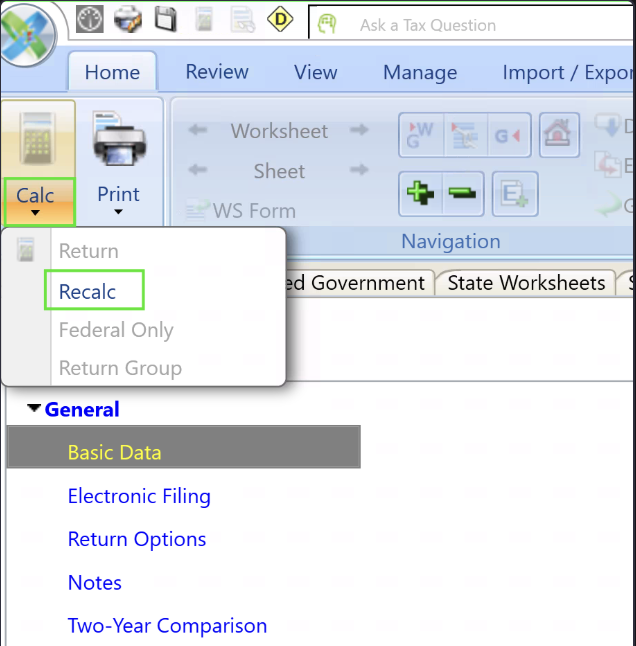
After importing the tax return into CCH Axcess, open it and click "Recalc." Check whether the return data now populates correctly. If data appears, the issue is resolved. If not, proceed to Step 2.
Step 2 — Verify the Import Job in Batch Manager & shared with Filed support
Verify the import job completed successfully in Batch Manager. If it failed, capture a screenshot of the error details to share for further support.
Navigate to: CCH Dashboard > Application Links > Batch Manager > Refresh Job Status (green button, top center) > Job Status section.
Check the status shown:
Complete: The import finished successfully.
Exception (Failed / Partial Success): Click "Exception," then select "Failed" or "Partial Success."
Take a screenshot of the error details and send it to support@filed.com so we can investigate why the import did not complete.