Tax Planner Best Practices
Last updated: March 6, 2026
How to Open Tax Planner
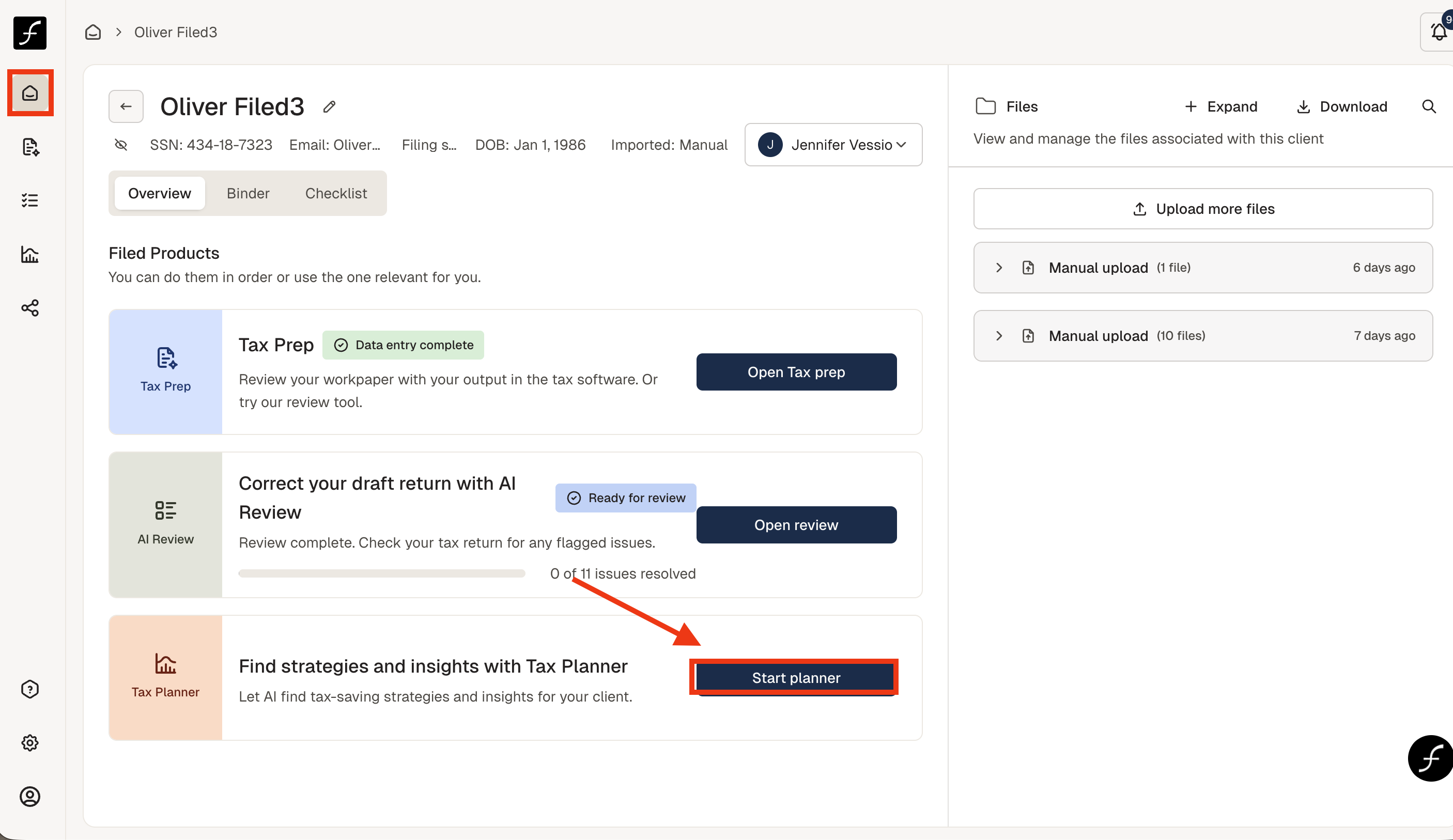
To begin, go to the Home screen (first icon from the top) and select the client that you want to run in Tax Planner. select “Start Planner.”
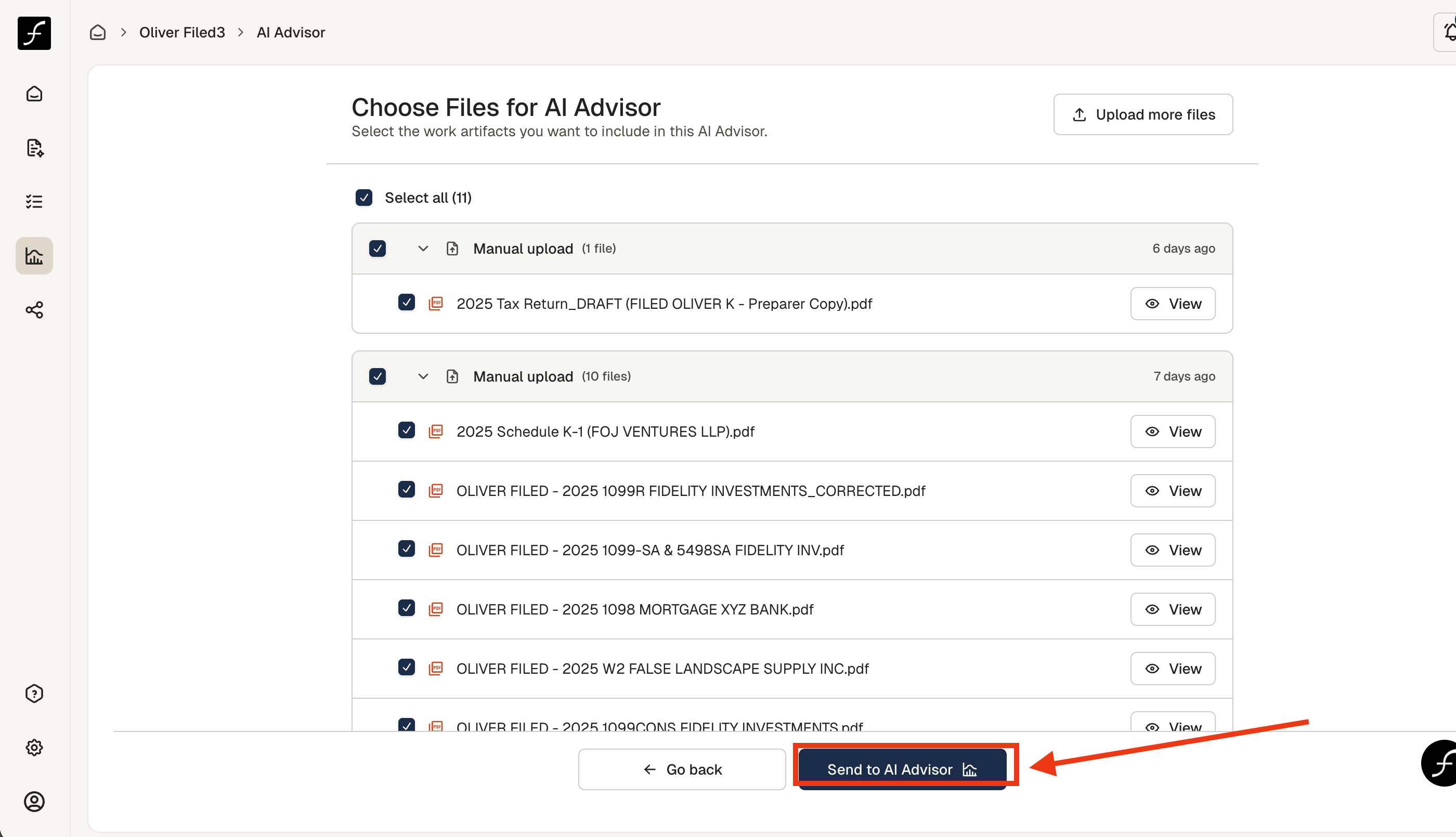
If you have already processed the client in AI tax prep, all the source documents, including the CY tax return and PY tax return will already be present. Send all to tax planner. Alternatively, if you are using tax planner as a standalone, you will create a new client and upload all source docs from CY, CY return, and PY return. Then click "Send to AI Advisor".
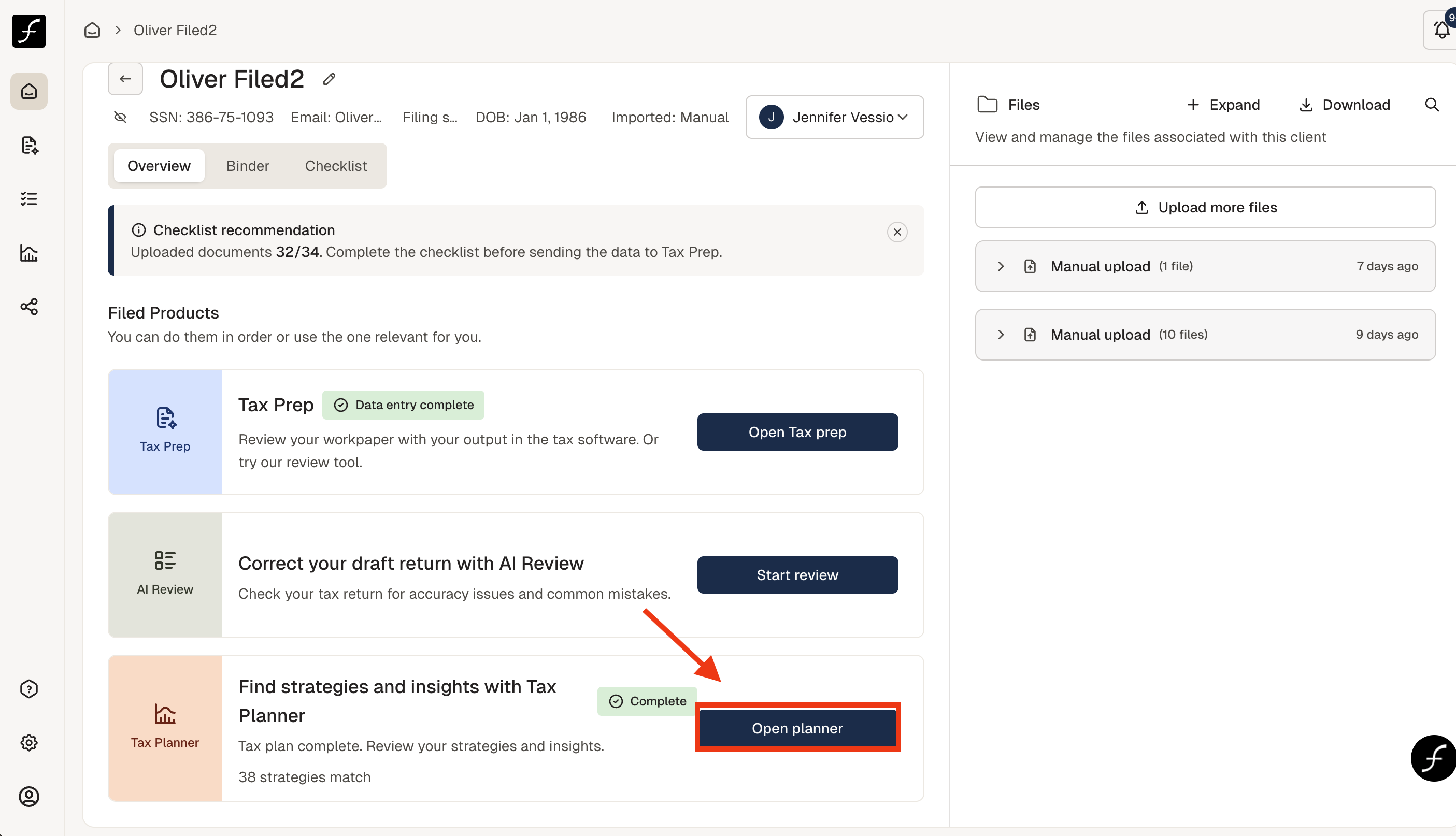
There will be a message asking you to confirm that you have uploaded the PY return. Confirm to begin processing. It takes anywhere from 5-10 minutes to process. Once it is ready, click "Open Planner"
Shown below are the categories of possible plan options. Click to expand the group and open the options to view the detail. Scroll down to see all.
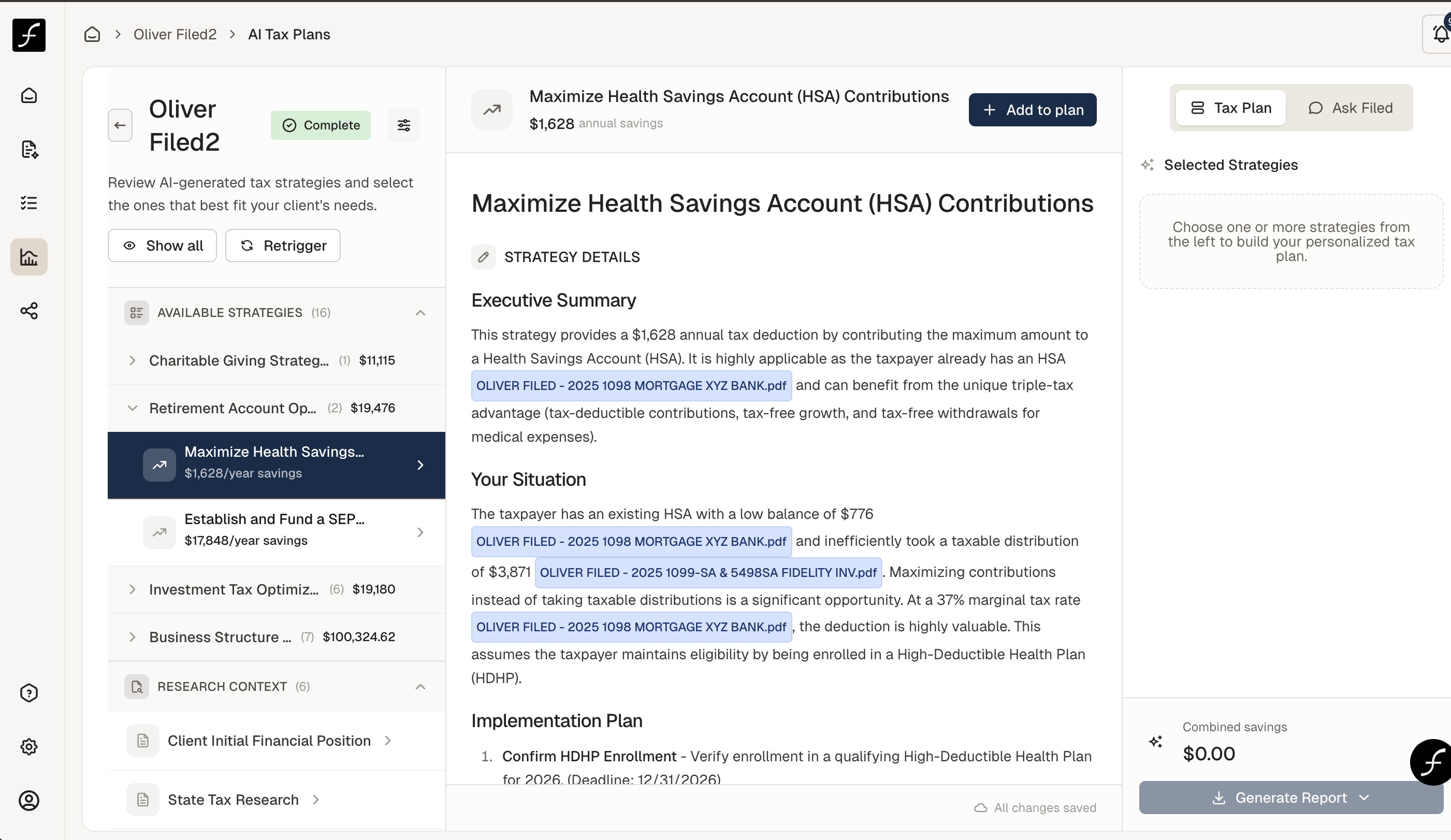
If you the strategy applies to the client, click "Add to plan". You will see the chosen strategies to the right. In the highlighted box on the right, you can see where the strategies came from, all the context.
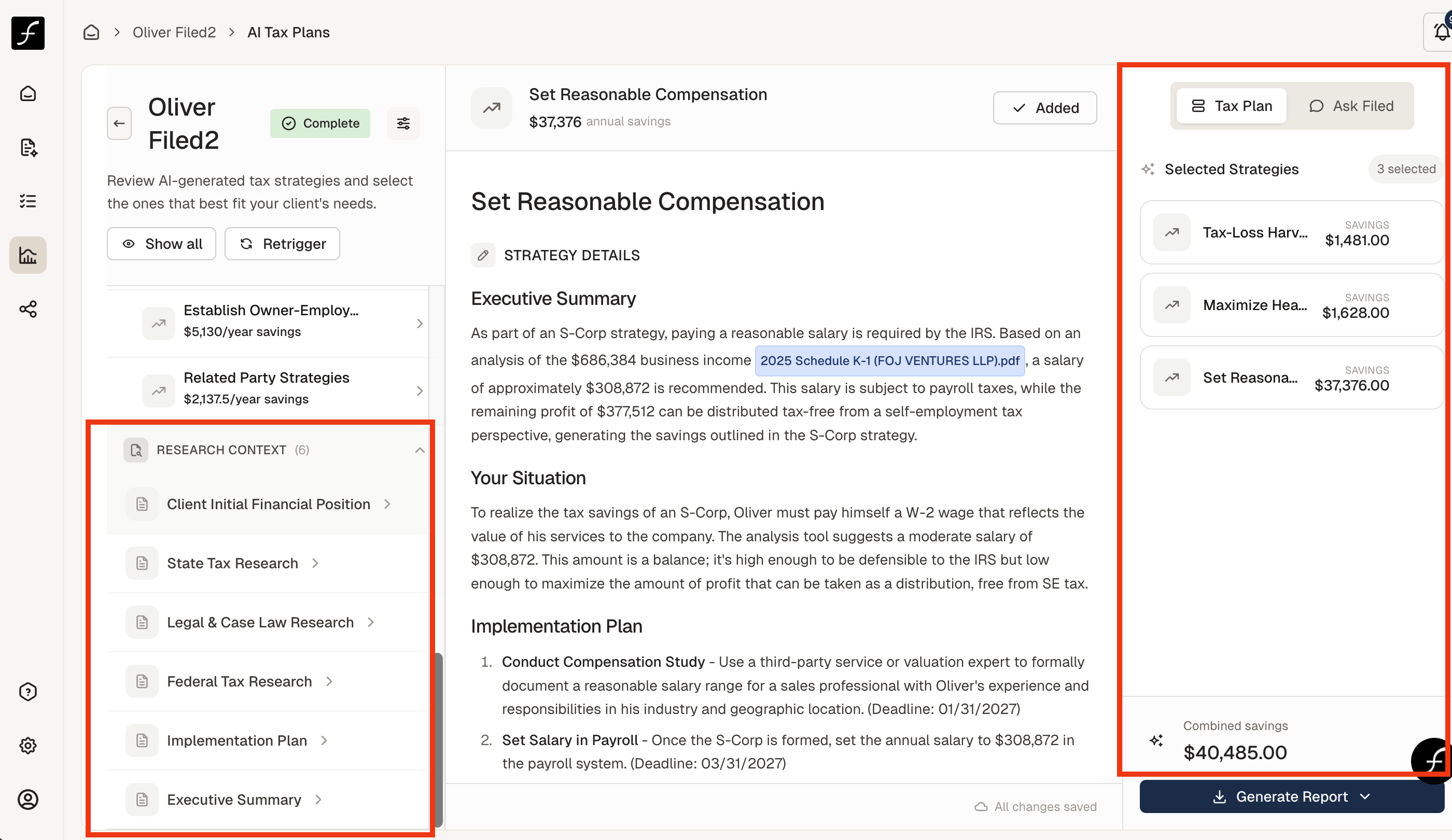
Once you have selected the strategies that you intend for this client, click "Generate Report". You can choose PDF, PPT, or Word doc. The PPT can be customized to have you Firm logo.
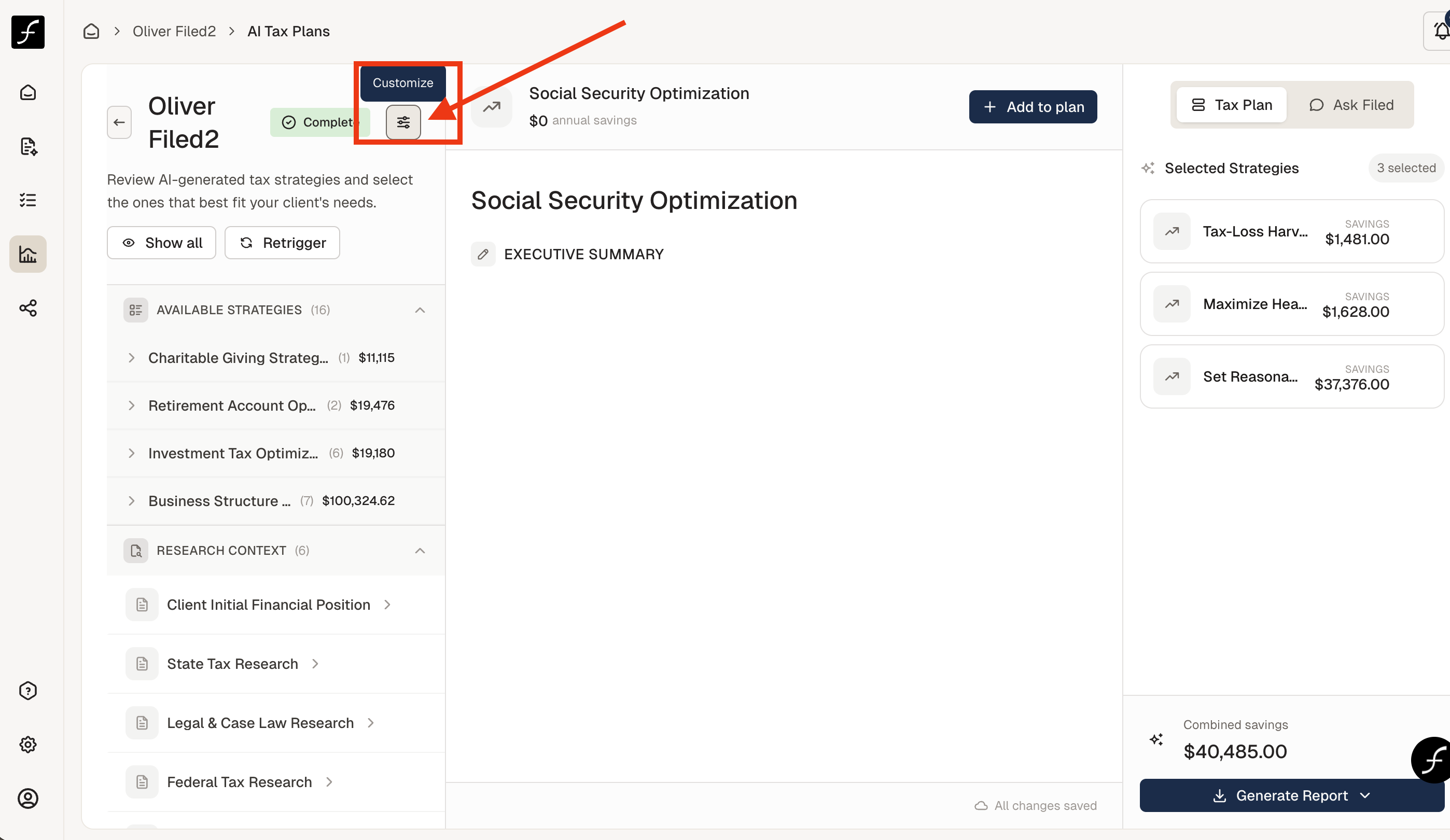
AI Planner is completely customizable. Simply click the Customize icon shown below.
You will see options to Add your own strategy, Re-analyze with new documents, and Brand your output.
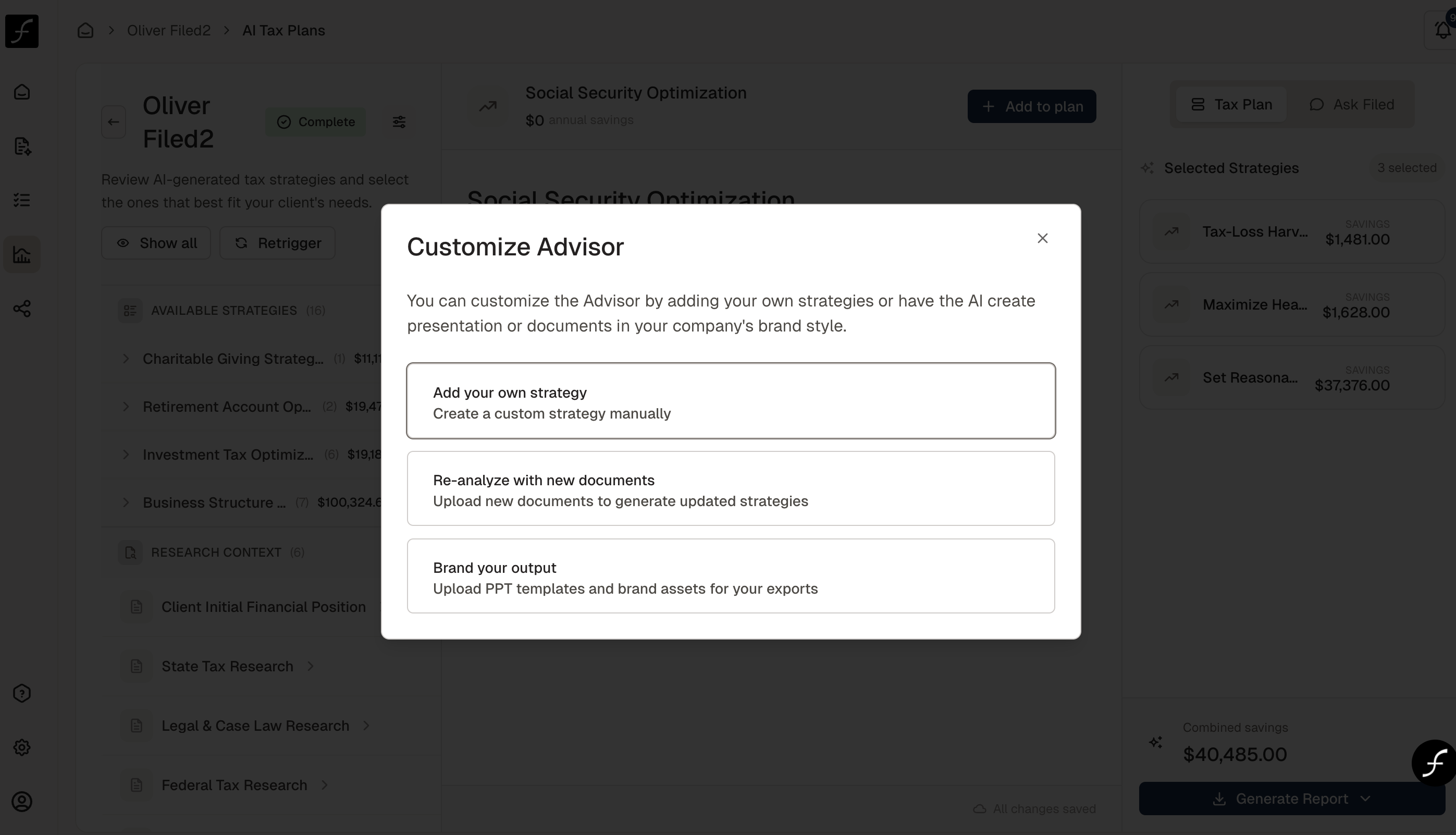
If you already have some strategies in play for this client, Add your own strategy would allow you to insert it into the plan. If you have other documents that would be useful for generating a strategy, add it to the file and re-run (re-analyze with new documents). The brand output only needs to be customized once. Then it will appear on all future PPTs.
Using the Tax Planning Assistant
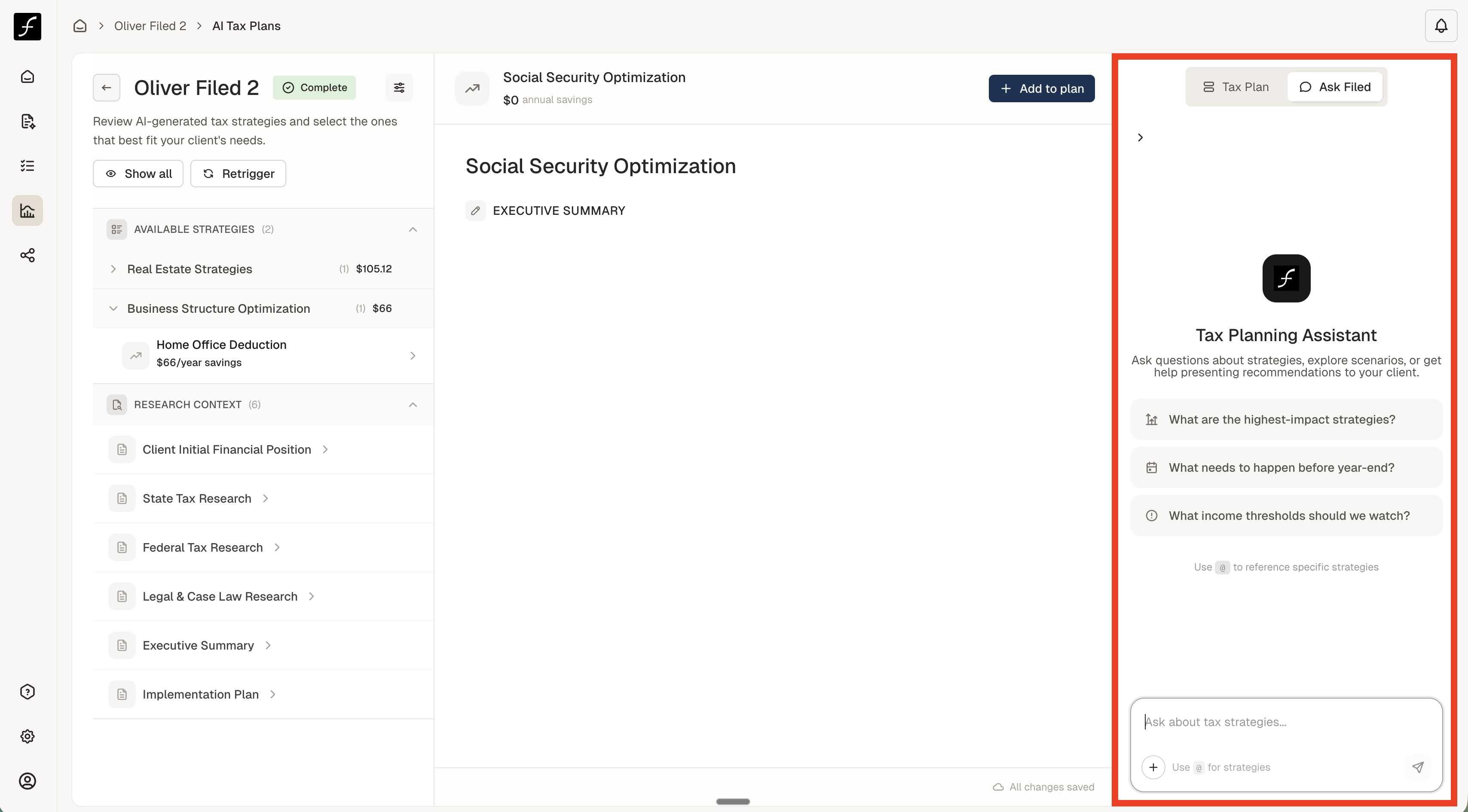
The Tax Planning Assistant is a chat interface built directly into Tax Planner. You can ask questions about the client you are currently working on, and every response is grounded in that client's actual return and source documents.
There is no usage limit. Ask as many questions as you need.
How to use it
Open the chat panel while you have a client's Tax Planner session active. Type your question naturally, the same way you would ask a colleague. You can also type @ to reference a specific strategy that has already been surfaced for that client and ask follow-up questions directly about it.
What to ask
The assistant works best when you treat it like a knowledgeable colleague who has already read the entire file. Some examples of questions that work well:
"What's driving the QBI deduction limitation for this client?"
"If they make a $30,000 Roth conversion this year, does that push them into a higher IRMAA bracket?"
"Are there any passive loss carryovers we haven't accounted for yet?"
"Walk me through why the SEP contribution strategy was flagged."
"What documents support the rental depreciation recommendation?"
"@Cost Segregation Strategy - what would the client need to provide to move forward on this?"
The assistant will not generate generic tax advice. Its answers are specific to this client's numbers, documents, and situation. If something in the response cites a figure, that figure comes from the return.
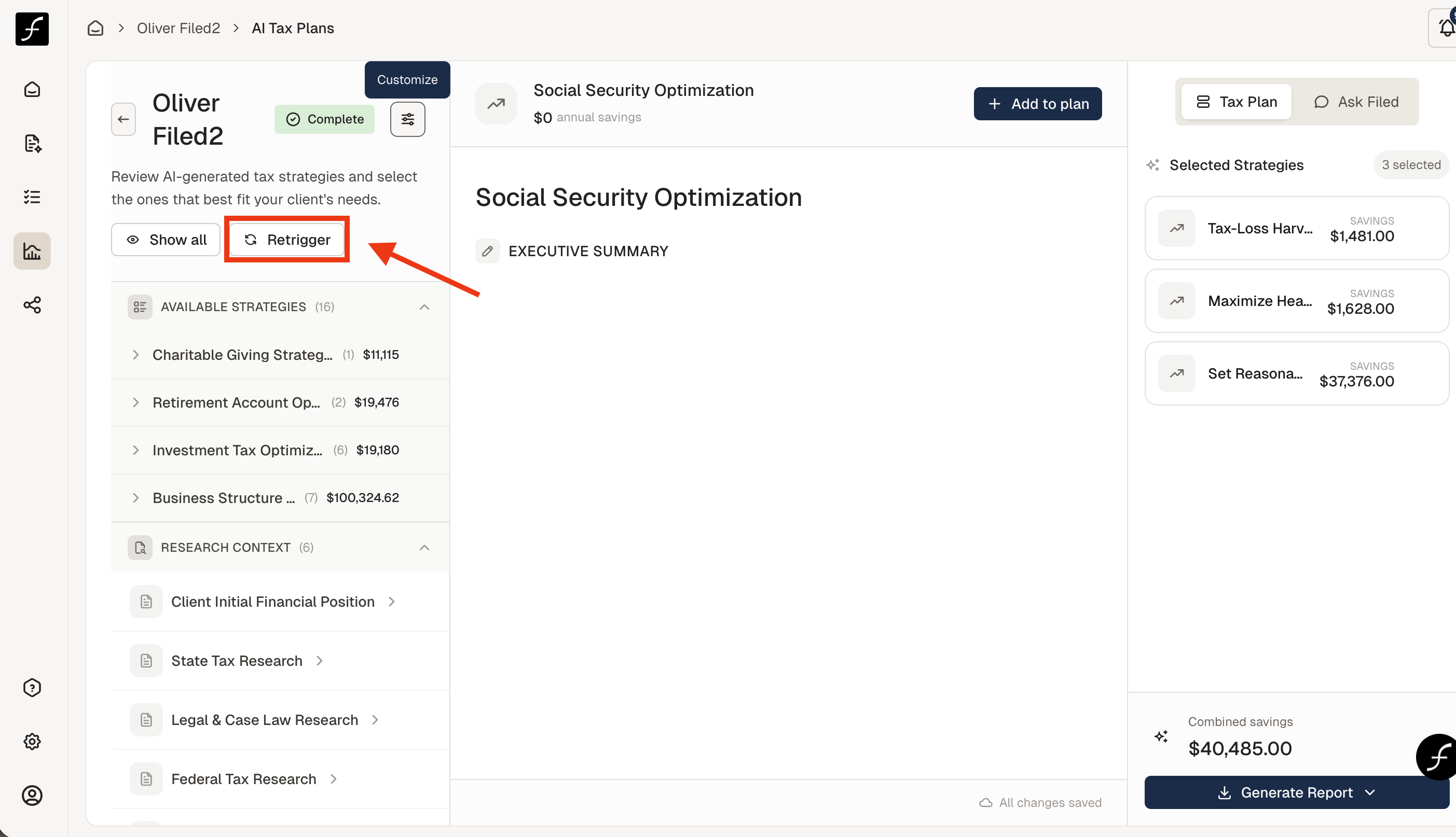
Lastly, if you uploaded a document (and ran planner) with an unintended document included, you can remove the document by clicking "Re-trigger" - this will bring you to the page with all the documents. Simply uncheck the unwanted documents and click "Send to AI Advisor".