How to Re-Authenticate Filed Web App with Lacerte using Filed ProWork Desktop App
Last updated: September 22, 2026
This article explains how to re-authenticate the Filed Web App with Lacerte using the Filed ProWork Desktop App.
Prerequisites
Make sure you are logged in to web.apps.filed.com.
Make sure the Filed ProWork Desktop App is open.
Make sure Lacerte is available on your desktop.
Re-authenticate Lacerte
Here is a quick video walkthrough:
In the Filed Web App, go to Plugins.
If you are not signed in to the Filed ProWork Desktop App:
Click ProWork Desktop.
Find your own connection.
Click Regenerate Code.
Copy the code and paste it into the Filed ProWork Desktop App to sign in.
After you are signed in, confirm you are on the latest version of ProWork:
Click your initials in the Filed ProWork Desktop App.
Click About ProWork.
Click Check Updates.
If an update is available, install it before continuing.
If you need to sign in again after updating, regenerate a new code and use it to sign in.
Return to the Filed Web App and find the Lacerte connection in the Plugins section.
Click Client List, then click Sync Clients.

Authenticate in the ProWork Desktop App
After clicking Sync Clients, open the Filed ProWork Desktop App.
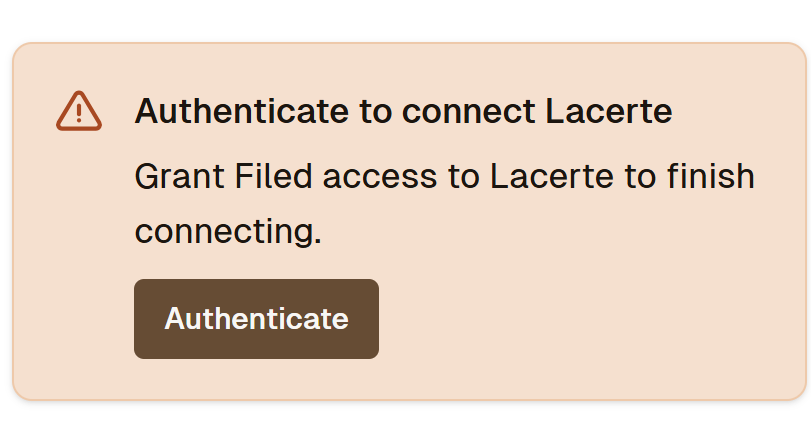
When you see the notification that says Authenticate to connect Lacerte, click Authenticate.
Lacerte sign-in pop-ups will appear. Sign in using your Lacerte login credentials.
If you do not see the pop-ups, minimize all open windows, especially if you are using additional monitors.
You may see two or three Lacerte login pop-ups. Complete the Lacerte sign-in process for each pop-up.
Once sign-in is complete, Lacerte should be fully authenticated and clients should begin syncing.
Confirm the sync completed
Return to the Filed Web App at web.apps.filed.com. You should be able to see that clients have successfully synced.
Need help?
If you encounter any issues during this process, please contact support using the purple widget at the bottom-left of the platform or email support@filed.com.