Create the Filed AI user in CCH Axcess Tax
Last updated: August 19, 2026
To connect CCH Axcess Tax to Filed, create a dedicated user in CCH Axcess Tax for Filed AI. This user must have a CCH Axcess Tax license, the same security access as your tax preparers, and an email address that your team can access.
Create the Filed AI user in CCH Axcess Tax
Log in to CCH Axcess Tax.
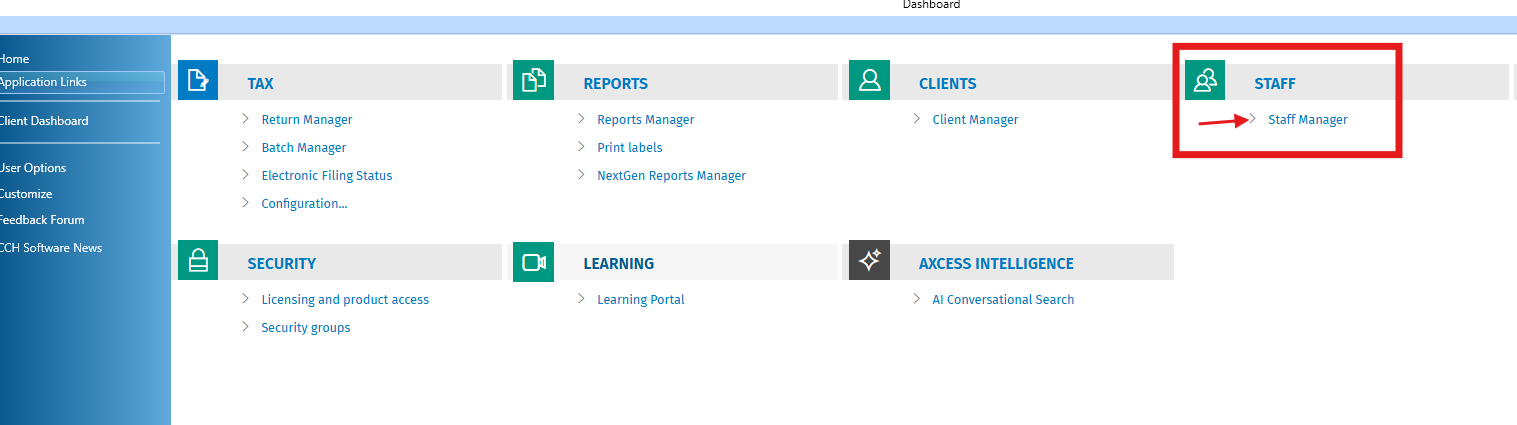
From the dashboard, go to Staff > Staff Manager.
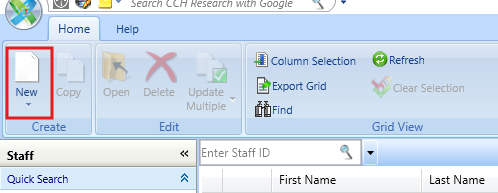
Click New in the top-left.
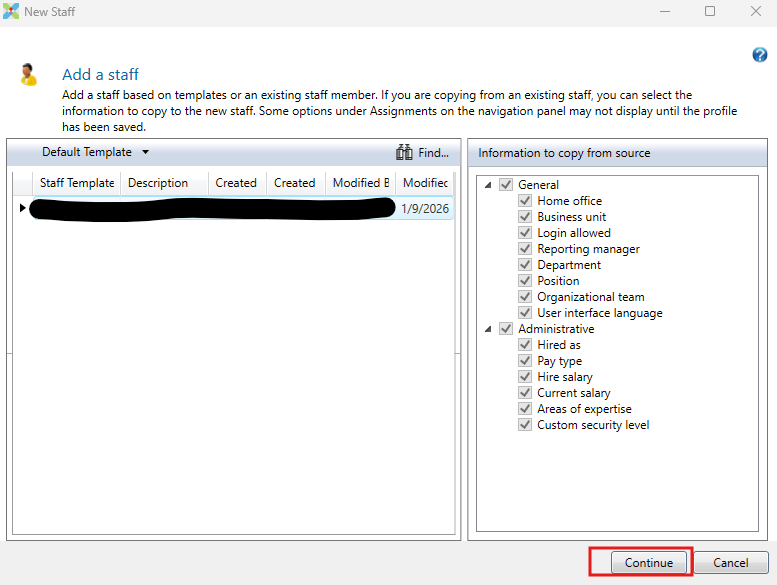
Click Continue.
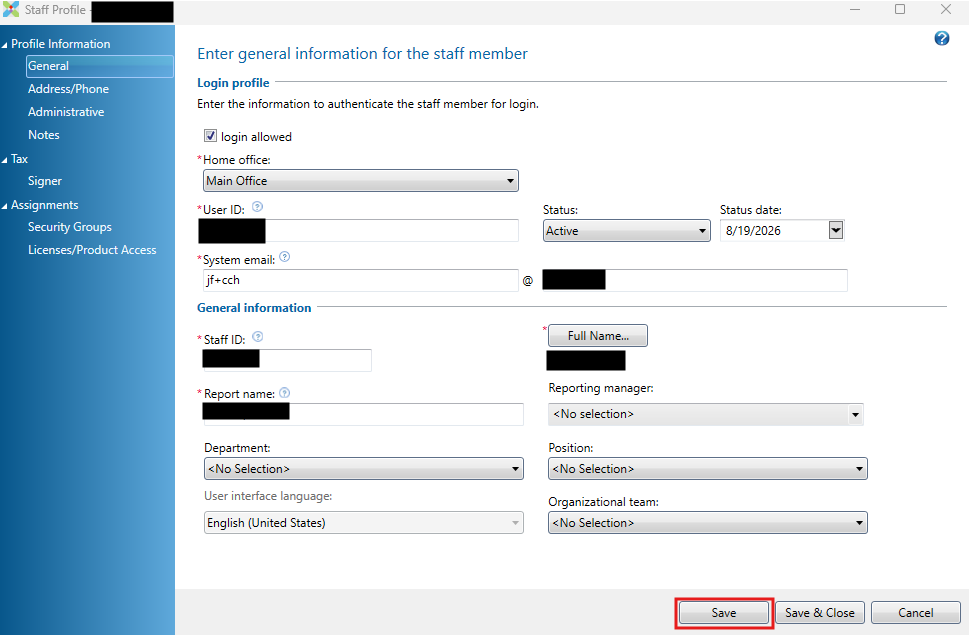
Enter the Filed AI user details:
First Name: Filed
Last Name: AI
Username: FiledAI
Staff ID: FiledAI
System email: Use an email address you can access.
Choosing the System email
For the System email, use an inbox you can access. CCH will send the username and temporary password to this address.
You have two options:
Option 1: Use an email alias
If your organization uses Google Workspace or Microsoft 365 and supports email aliases, you can use your existing work email with a +cch alias.
Example:
yourname+cch@yourdomain.comThis email must route to an inbox you can access, because CCH will send the username and temporary password there.
Option 2: Create a dedicated email address
If your organization does not allow email aliases, create a dedicated email address for the Filed AI user.
Example:
filedai@yourdomain.comYou should retain access to this inbox in case you need to reset the password later.
Click Save — not Save & Close.
Stay on the staff profile page so you can assign the required security settings and license.
Assign security groups
In the left panel, under Assignments, click Security Groups.
Assign the Filed AI user to the same security group your tax preparers use.
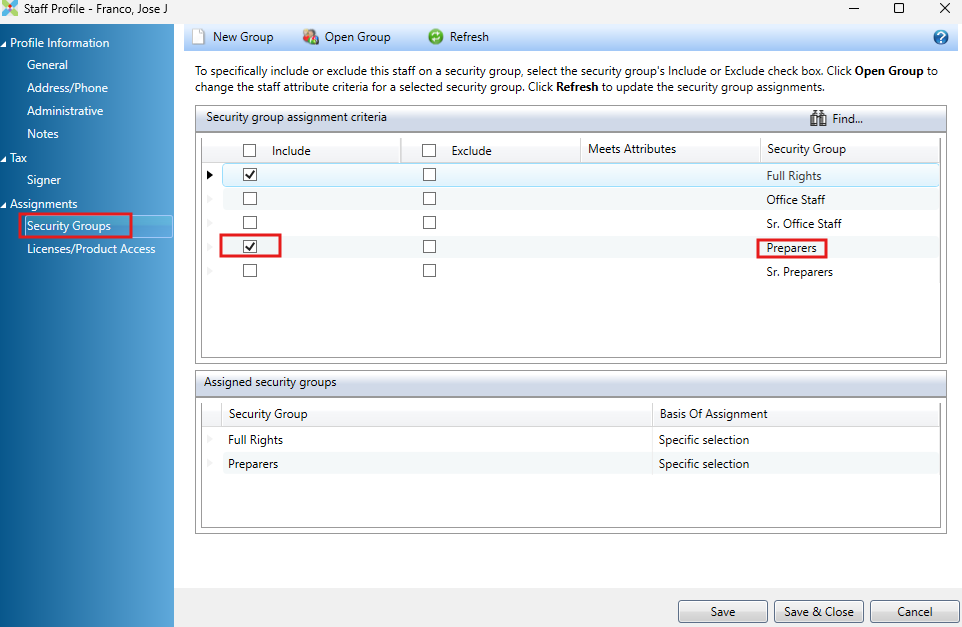
Click Save.
Assign a CCH Axcess Tax license
In the left panel, under Assignments, click Licenses/Product Access.
Select CCH Axcess Tax.
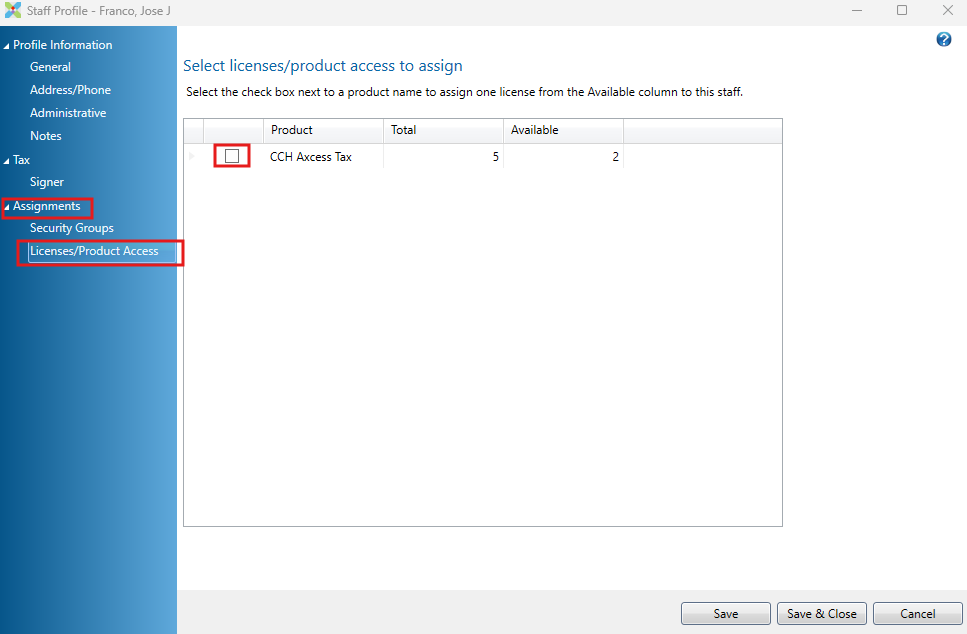
Click Save.
Note: If no CCH Axcess Tax licenses are available, contact your CCH sales representative to add another license. Additional fees may apply depending on your CCH plan.
Set the permanent password
After the user is created and licensed:
Log out of CCH Axcess Tax.
Check the inbox for the email address or alias used above.
Use the CCH email to sign in as the Filed AI user.
CCH will prompt you to set a permanent password.
Save this password securely — you’ll need it when completing the Filed integration setup.
Then continue with the two-factor authentication (2FA) setup step in the CCH Axcess integration guide.