Sending files with Filed Printer
Last updated: January 21, 2026
The Filed Printer makes it easy to send tax returns to Filed directly from your desktop or tax software for AI reviewer.
How do I send files with the Filed Printer?
Anywhere you can print, you can send that document to your Filed account. This includes the print feature inside of your tax software.
I've printed them! Where can I find the files?
Once printed, Filed will automatically match the 1040 to the correct client in Filed by matching your client's SSN.
Go to your client and then click AI Reviewer option
You should see an option to use Filed Printer with a copy of the tax return you printed and manual upload.
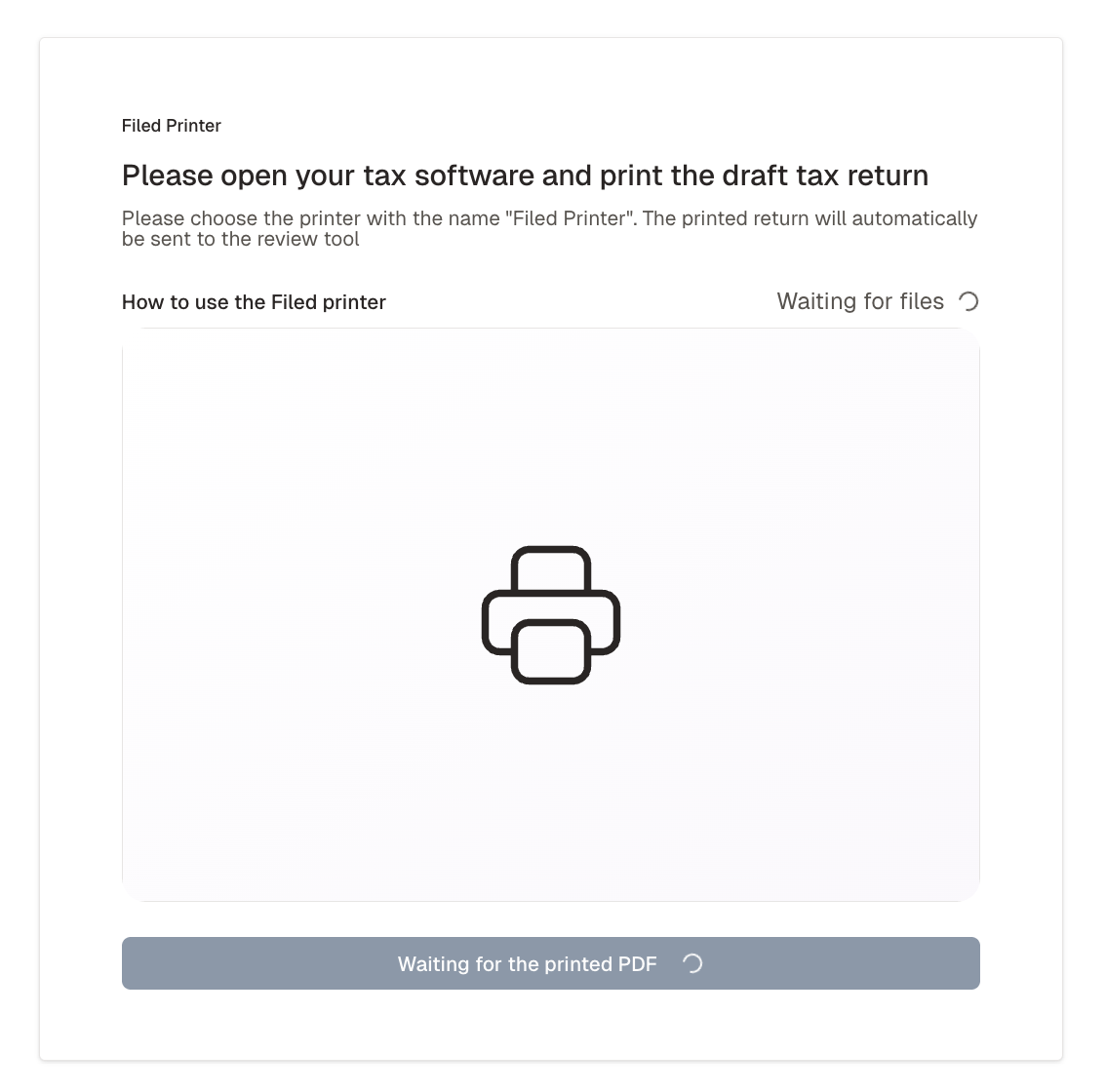
Once it appears, select the file, and click Create Review.
How do I set up the Filed printer for my workspace(s)?
I don't see my files in Filed. Where are they?
First, confirm it's been within 4 days since you printed the file.
Next, check to see if you have the Filed printer connected to the correct workspace.
Log in to your Filed account
Go to Connect > Tools
For the Filed Printer, you should see Connected
Under Filed Printer, click View to see your printed files.
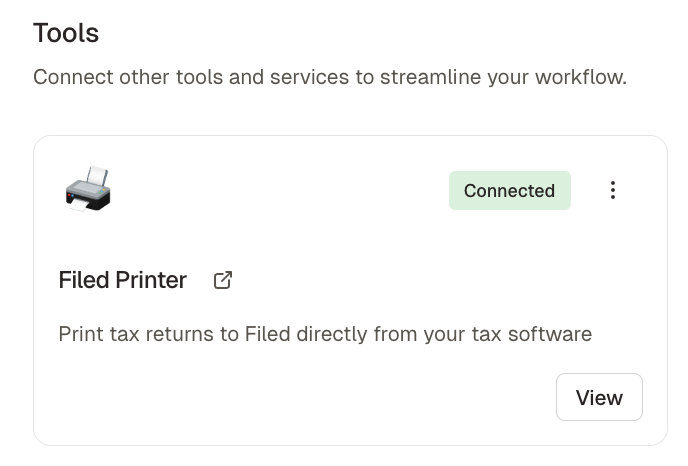
If it's connected but listed in the View page, confirm you printed the document to the correct Filed Printer for this workspace. You may have sent it to a Filed Printer
for a different workspace.
I don't see Filed Printer as an option on my computer but Filed says it's "Connected"?
Filed will stay connected if you click Complete during printer set up steps. It won't check to see if you completed steps on your desktop. In this case, please review the setup steps here to make sure the Filed printer added correctly.
Can I use the Filed Printer for other products?
Once a Filed Printer-sent document has been run through AI Reviewer, the tax return will be added to the client's list of documents.