Tax Prep workflow for CCH Axcess (without an API Kit)
Last updated: March 11, 2026
View this guide for connecting the CCH Axcess Tax integration without an API Kit.
Once your CCH Axcess Tax integration is connected, you can start tax prep.
This resource includes how to complete Tax Prep with CCH Axcess
Starting your client's Tax Prep
Uploading the return to CCH Axcess Tax
Starting your client's Tax Prep
IMPORTANT: For this tax season, you will need to roll over the customer to 2025 first in CCH Axcess Tax. You will have to export a 2025 backup copy to upload to Filed.
[Updated Loom video coming soon]
Start Tax Prep in Filed
In Filed, upload source documents or click on your client.
In your client, click Start Tax Prep.
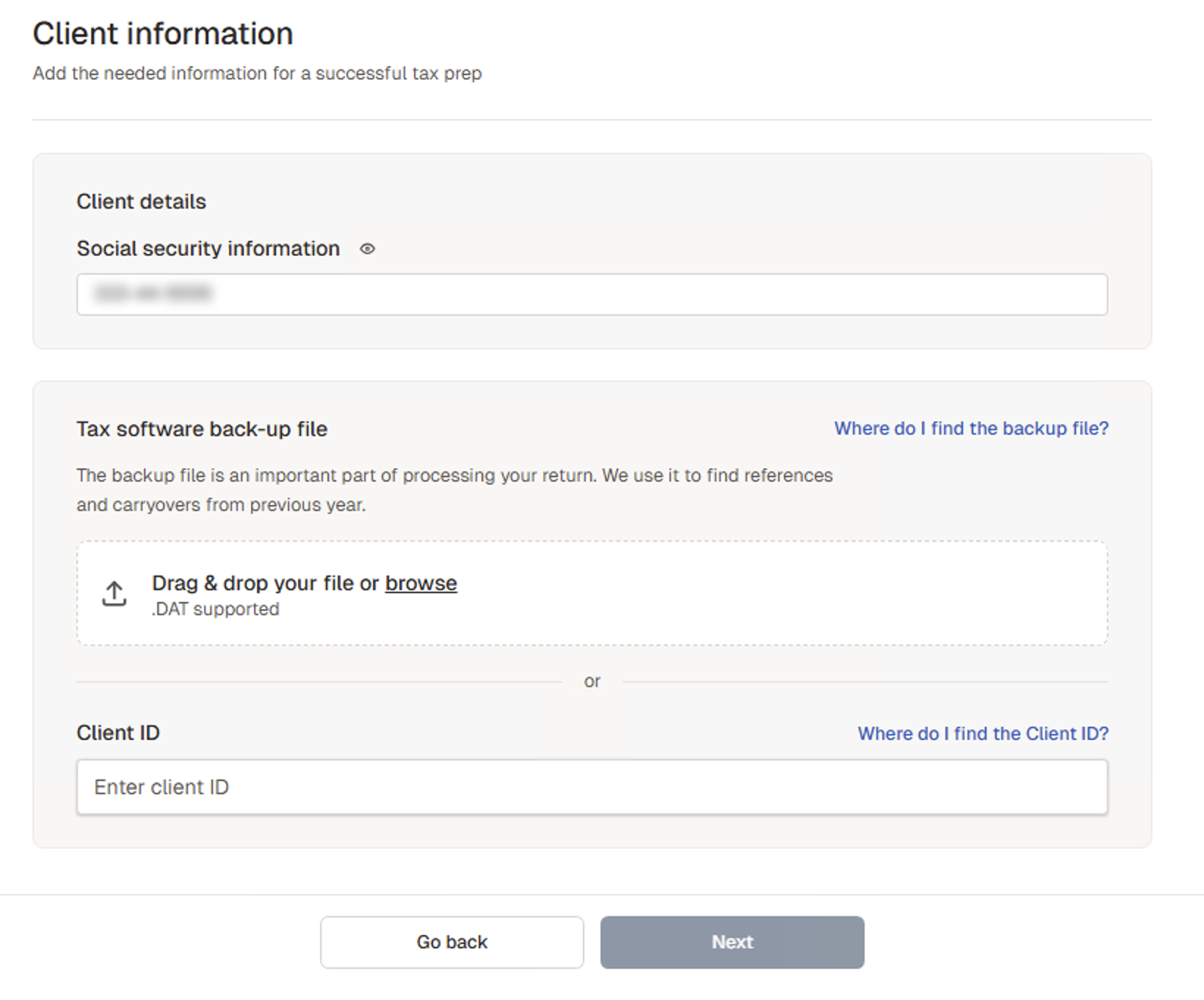
If Filed is unable to find your SSN, Filed will request SSN. Skip if SSN is added already.
Filed will check to see if you previously uploaded a backup copy (see this guide on bulk uploading backup copies)
Path 1: If Filed doesn't have a copy or if you have a more accurate backup copy in CCH Axcess Tax, follow the steps below to Path 1 only: Retrieve your backup from CCH Axcess Tax.
Path 2: If you already uploaded a backup copy earlier and it's still up to date, you should see it saved under "Tax software backup-file".
Click Next.
Once tax prep is complete, skip to the steps to Upload the return to CCH Axcess Tax. Or, if you have many completed 1040s, bulk upload multiple or all of them to CCH Axcess Tax with this guide.
Path 3: If you proceed without uploading a tax software back-up file and just share the CCH Axcess Tax Client ID, your 1040 will not be accurate. This return will not have important information from prior years, carryovers, etc. Proceed with caution. Once tax prep is complete, skip to the steps to Upload the return to CCH Axcess Tax. Or, if you have many completed 1040s, bulk upload multiple or all of them to CCH Axcess Tax with this guide.
Path 1 only: Retrieve your backup from CCH Axcess Tax
Log in to CCH Axcess Tax Return Manager and find your customer.
Make sure this customer has been rolled over to 2025.
Click Utilities and in the dropdown, select Export.
Select Returns selected in Return Manager
Select Include input data
Click Export.
Log in to your CCH Dashboard
Go to your Batch Manager.
Tip! Click Refresh Job status if you don't see your backup file.
Select the backup file and click Download.
Name and save the .dat file so you can find it. It's now ready to be uploaded to Filed!
Path 1 only: Upload your backup file to Filed (Path 1)
Return to Filed, click Upload.
Note: Even if we have a previously uploaded backup copy, Filed will only use the recently uploaded copy.
Drag or browse for the exported backup file you just saved to your Desktop.
The tax prep will start again. Proceed to the next part once the tax prep is complete.
Upload the return to CCH Axcess Tax
First, download a backup file from Filed
On the "Tax Prep" page, click on the client you want to upload to CCH Axcess Tax. Go to Output tab.
In "Tax Software backup file," click Download file.
Click View Backups.
Click Download for the latest "Prepared by Filed" return.
Upload the backup file to CCH Access Tax
Log into your CCH Axcess Tax as an admin.
Navigate to Utilities.
Click Import in the dropdown.
Click Browse to locate the downloaded backup file.
Once the file is located, click Open.
Optional: Select Update existing client profile with tax data to overwrite your client's data in CCH.
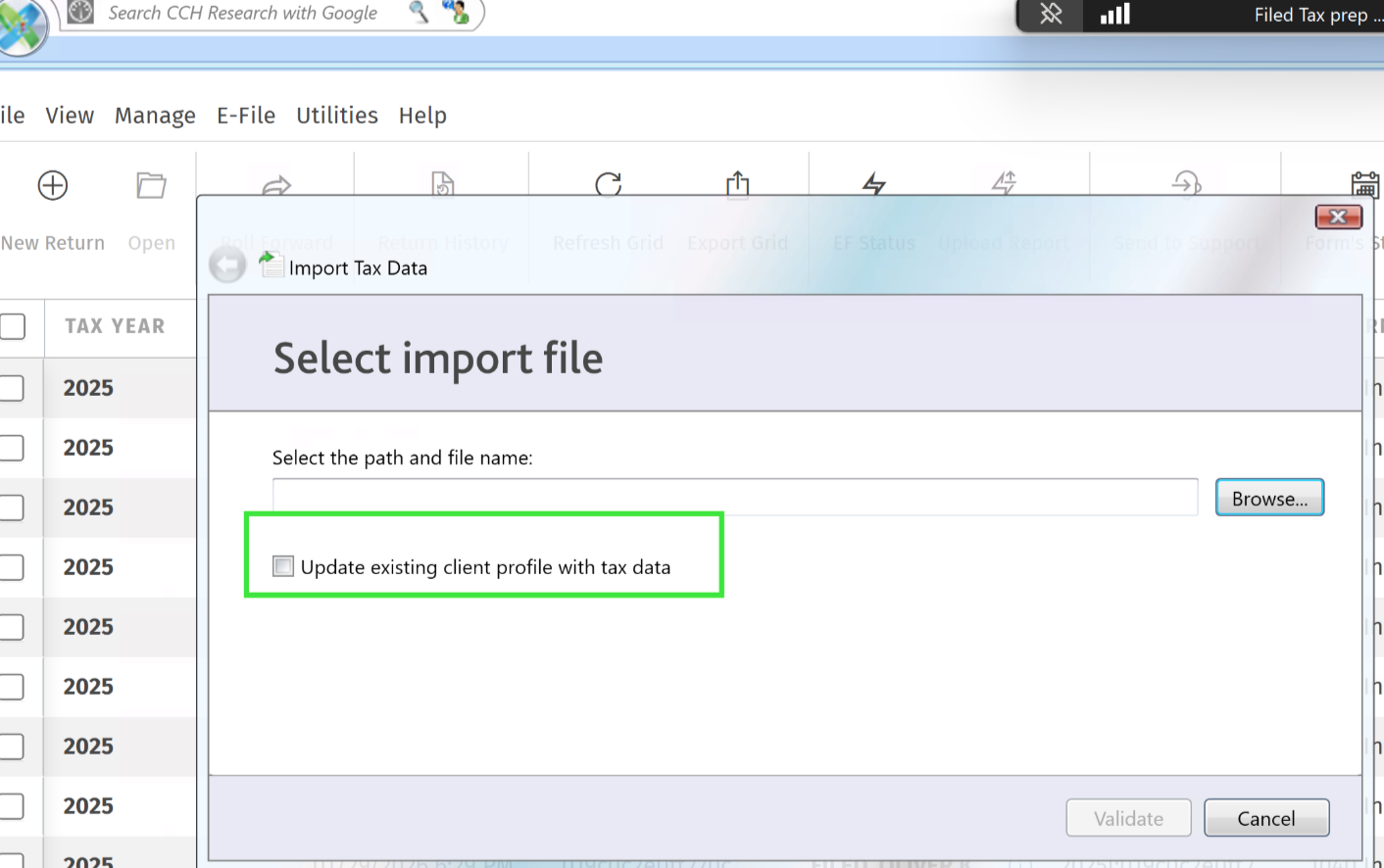
Click Validate.
Click Finish.
You're done! You should be able to view the client in CCH Axcess Tax.
Tip: Filter "Last Modified" column to view your most recently uploaded clients.