Using Filed as a Truss Customer
Last updated: March 16, 2026
For Truss Customers (customers billing from Truss). This resource is useful for any the following:
Before you start
Accessing Filed
For CCH Axcess Tax (without API Key): retrieve your .dat file in Filed
Before you start
To start sending over preps, you'll first need to create your Filed account, connect your tax software, and optionally, add the Filed printer.
1. Establish Truss <> Filed connection
In Truss, go to https://app2.gettruss.io/nango_connections
Once establish the Filed connection in Truss, you go to Filed to connect your tax software
2. Connect your tax software
In Filed, click Connect (left panel) > Tax Software > Connect under your tax software to establish a connection to Filed.
Review integrations guides here to connect your tax software to Filed
3. Add your Filed Printer - optional
The Filed printer is a quick way to send your 1040s to Filed's AI Reviewer.
Accessing Filed
Once you complete the "Before you start" steps above, you can access Filed by either of the following paths:
Path A: Go to app.Filed.com and log in with your company email.
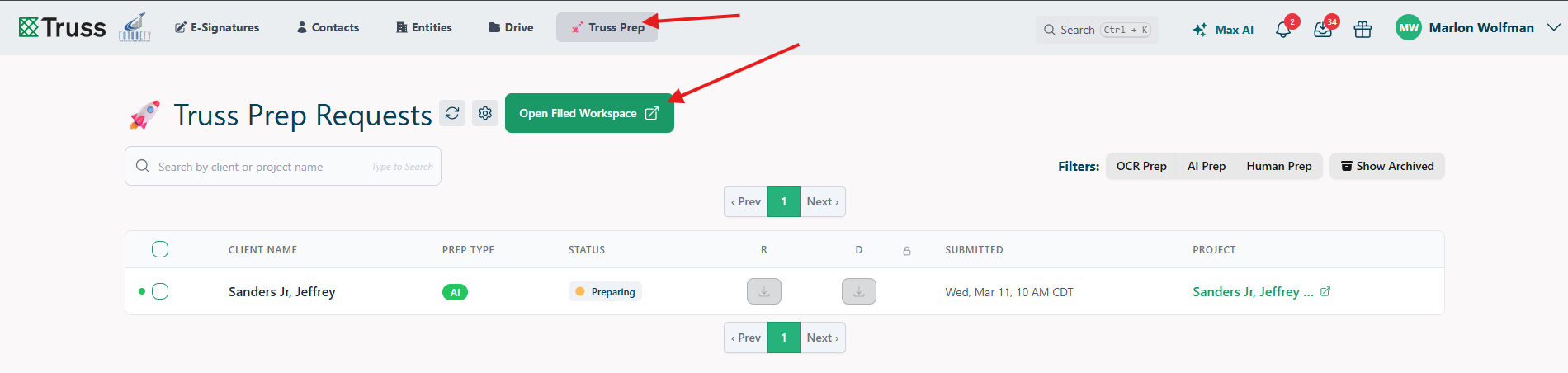
Path B: Navigate to Truss Prep Requests to see all submissions. At the top is 'Open Filed Workspace'. Click on to be taken to their filed workspace.
For CCH Axcess Tax, retrieve your .dat file in Filed
Once you are notified that tax prep is complete, go to Filed.
In Filed, click on your Tax Prep tab in the left panel.
Click on your client.
When Tax Prep is complete, your .dat file will show up in your Truss account.
You can also download a copy in Filed > your client's Tax Prep > Output tab in the horizontal navigation bar.