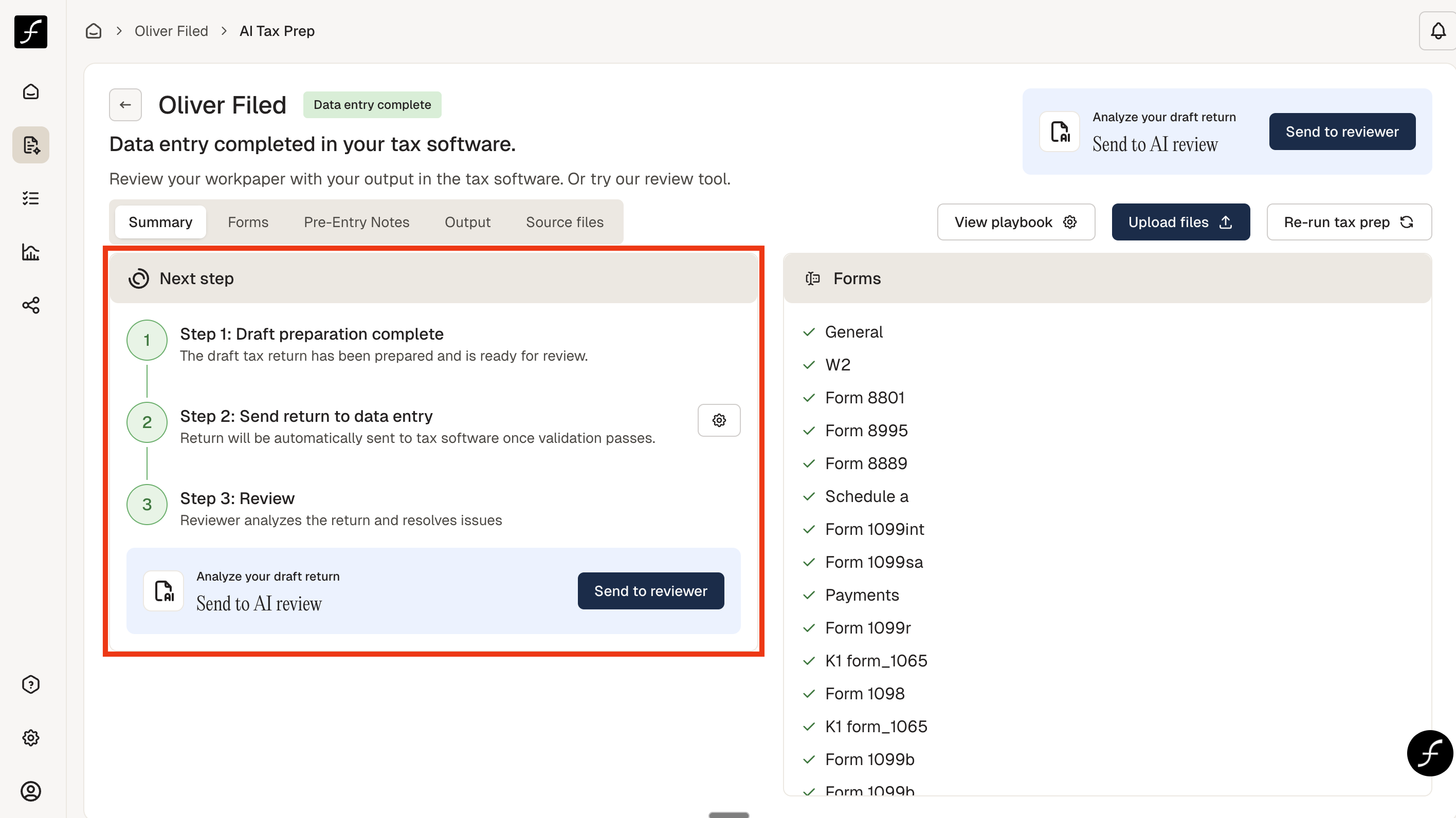
Summary Tab Overview
Last updated: February 9, 2026
The Summary tab will show you where a particular client is in the tax prep process.
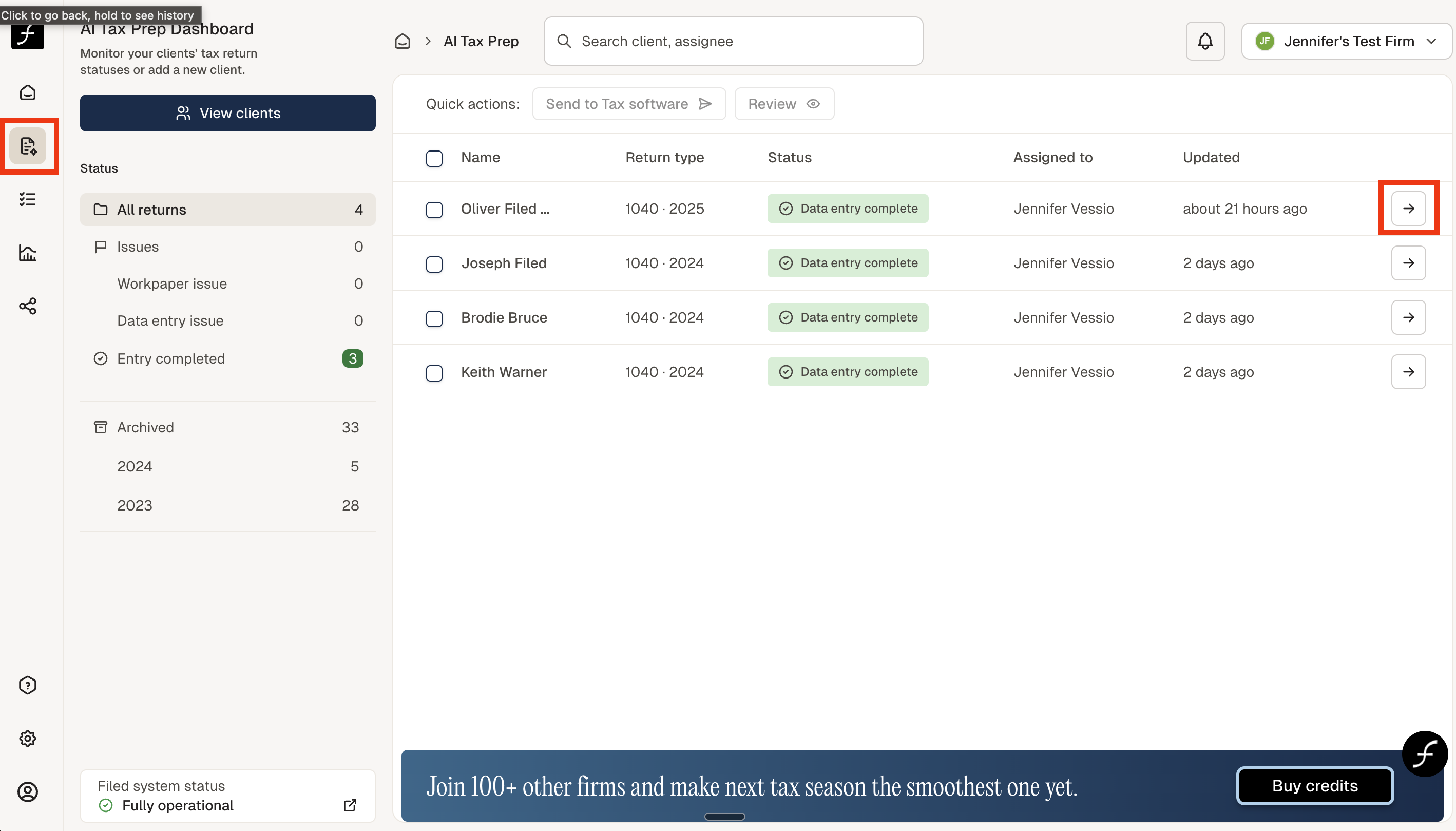
How to find the Summary Tab
From the home screen, click the AI Tax Prep icon, shown below (to the left). Then select the client by clicking on the arrow (shown on the right) of the client name.
You will arrive at the screen shown below. There are 5 tabs, Summary is the first one. You will see where in the tax prep process this client is currently. Shown below is a client whose return is complete and the completed return has been uploaded and completed the review process. When the return is processing, Step 1 will show Processing. To the right of next steps are all the forms that were uploaded - these forms can be viewed both in the Forms tab, as well as Source Files tab. The Gear icon next to Step 2 (as well as the View Playbook button) should only be used by someone with admin level controls as it is a firm preference. When the return has been processed by filed and is ready to be sent to tax software (all source documents have been uploaded - important!)