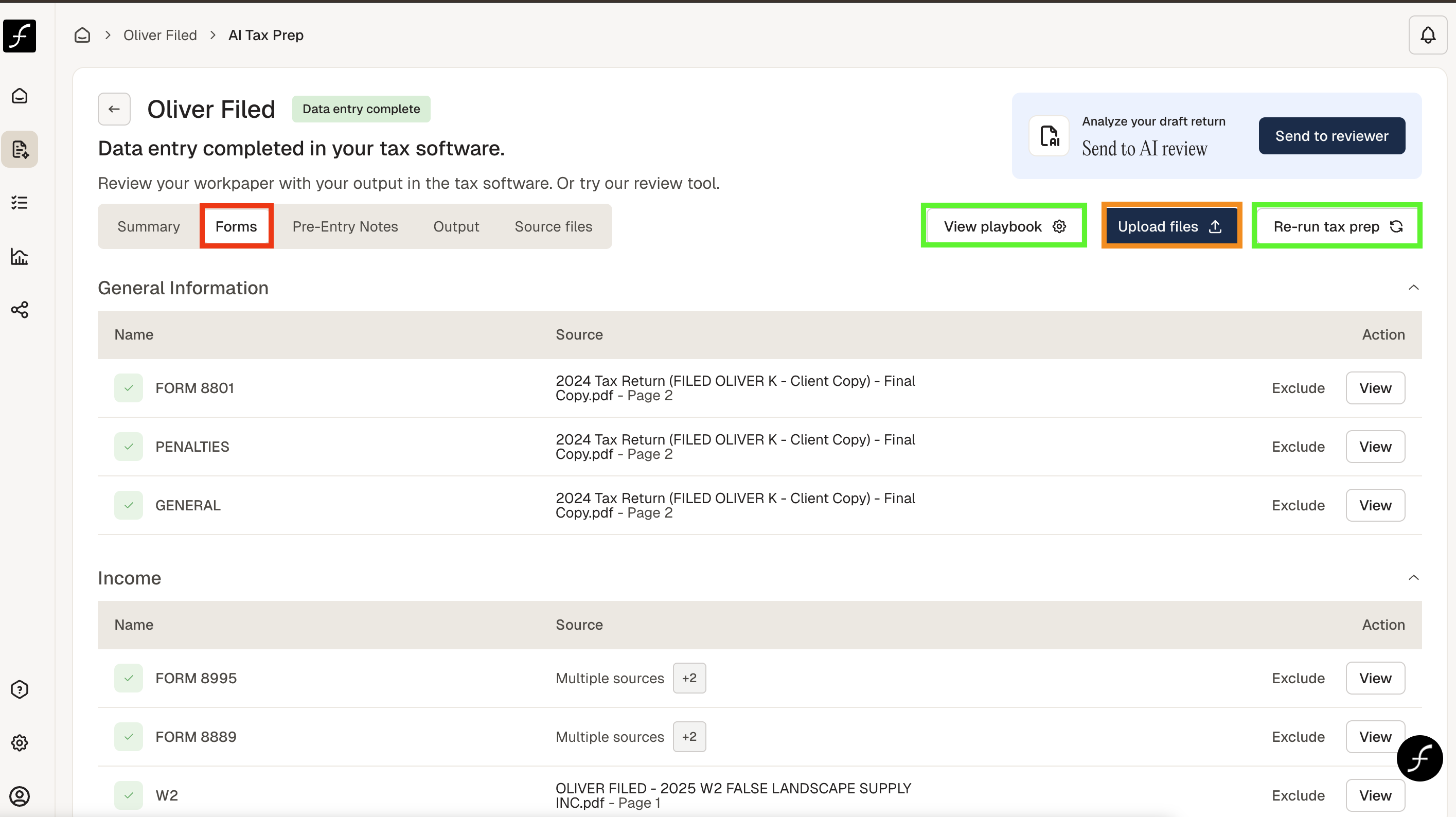
Forms Tab Overview
Last updated: February 9, 2026
The Forms tab will show the forms and screens that AI has detected from the uploaded document file.
How to find the Forms Tab
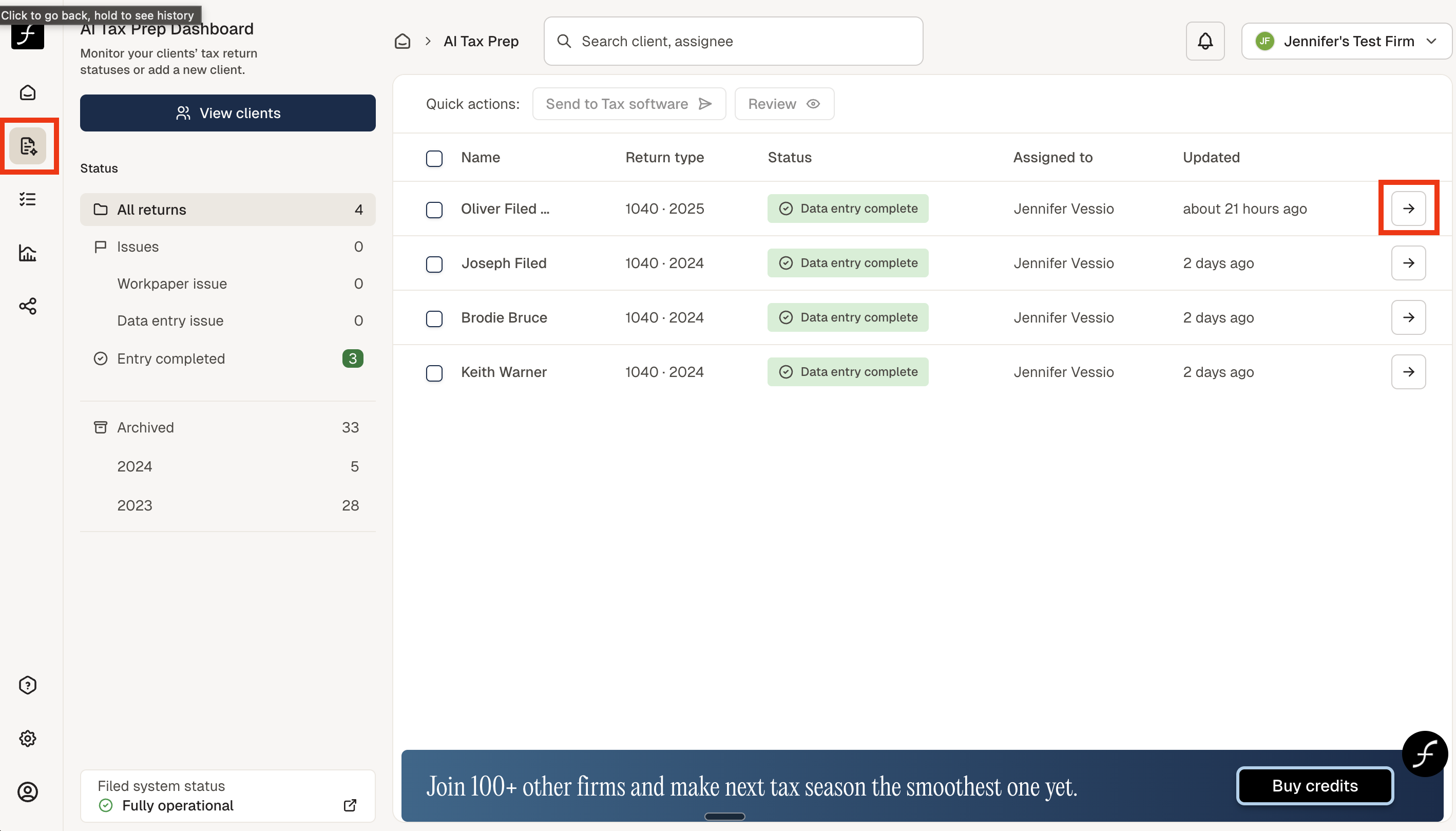
From the home screen, click the AI Tax Prep icon, shown below (to the left). Then select the client by clicking on the arrow (shown on the right) of the client name.
You will arrive at the screen shown below. There are 5 tabs, Forms is the second one - highlighted in red. The forms tab will show you both the docs uploaded and the forms that our AI had determined must be prepared. These will be in categories like, General Information, Income, Deductions, Credits, and Other. To the right you can choose to Exclude if you feel a form doesn’t need to be completed, or View if you would like to see what documents contributed to this reasoning.
On this page you can also upload more files in case you have forgotten one. The Upload files button is highlighted in orange. The buttons View playbook and Re-run tax prep - highlighted in green - should only be used by a Level 3 staff member. View playbook opens in a new window and allows you to create firm rules to auto-send files to tax software. This means you cannot check the forms screen or pre-entry notes first. Re-run tax prep would charge additional credits and thus should not be used by Level 1 or Level 2 staff.