Pre-Entry Notes Notifications Overview
Last updated: February 9, 2026
The Pre-Entry Notes page lists several things such as issues, missing documents, and excluded documents. This overview pertains to the types of notifications with Form Issues.
How to find the Pre-Entry Notes Notifications
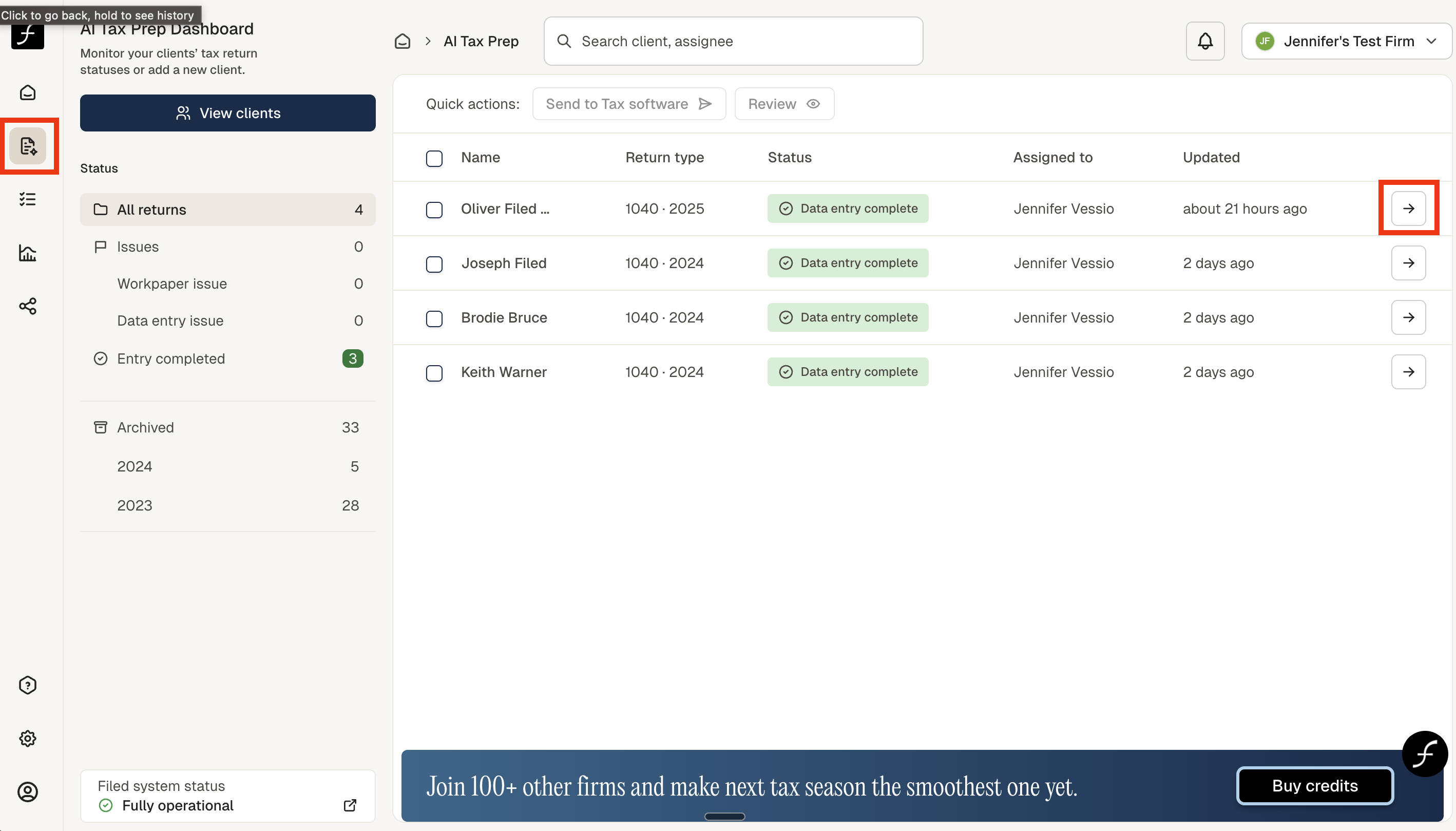
From the home screen, click the AI Tax Prep icon, shown below (to the left). Then select the client by clicking on the arrow (shown on the right) of the client name.
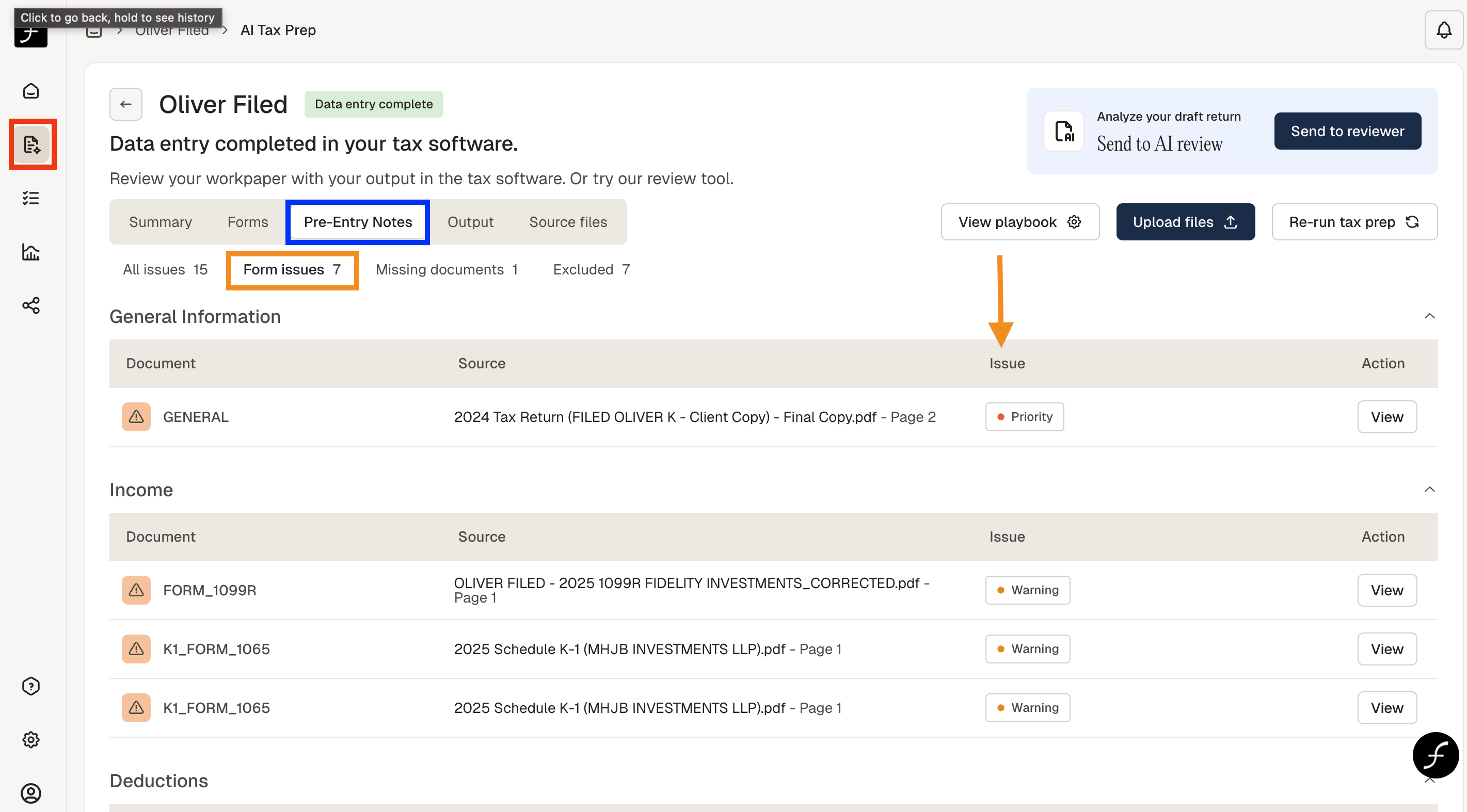
You will arrive at the screen shown below. There are 5 tabs, go to Pre-Entry Notes - the third tab highlighted in blue, then click Form issues which is just below Pre-Entry Notes highlighted in orange. Clicking Form Issues will filter to show only the notifications. The orange arrow points to the column of issues which shows either Priority or Warning. The nature of the issue will determine which label it gets - see below for examples.
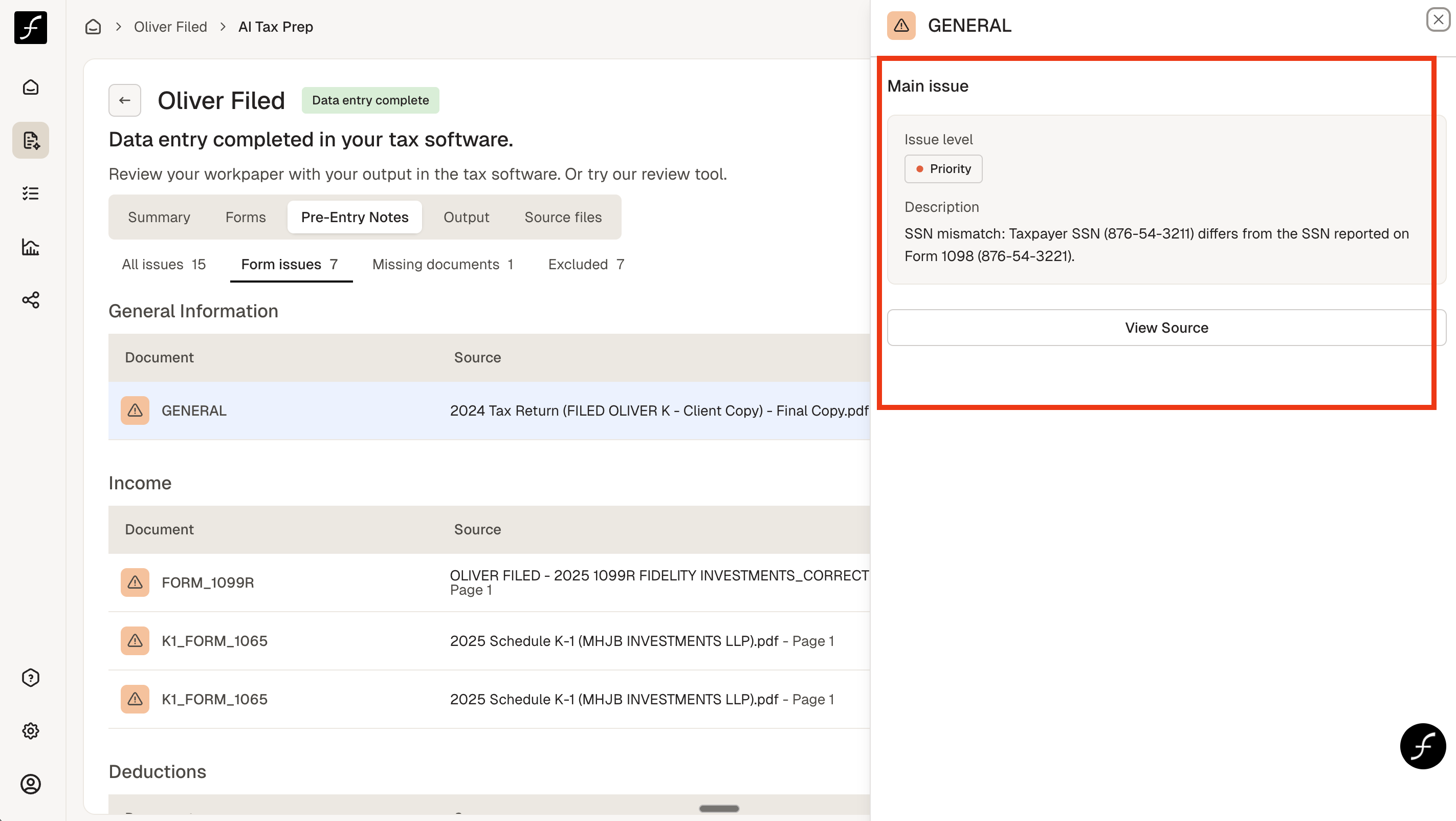
For example - clicking View - shown to the right of the notification - on the priority issue indicates a SSN mismatch. I clicked View Source and was able to view the 1040 which showed the correct SSN per the 1040. I also checked the form 1098 - which had the same priority notification and confirmed that the SSN was different. This is a good example of a priority issue which will usually necessitate editing information in tax software or at least checking it to verify.
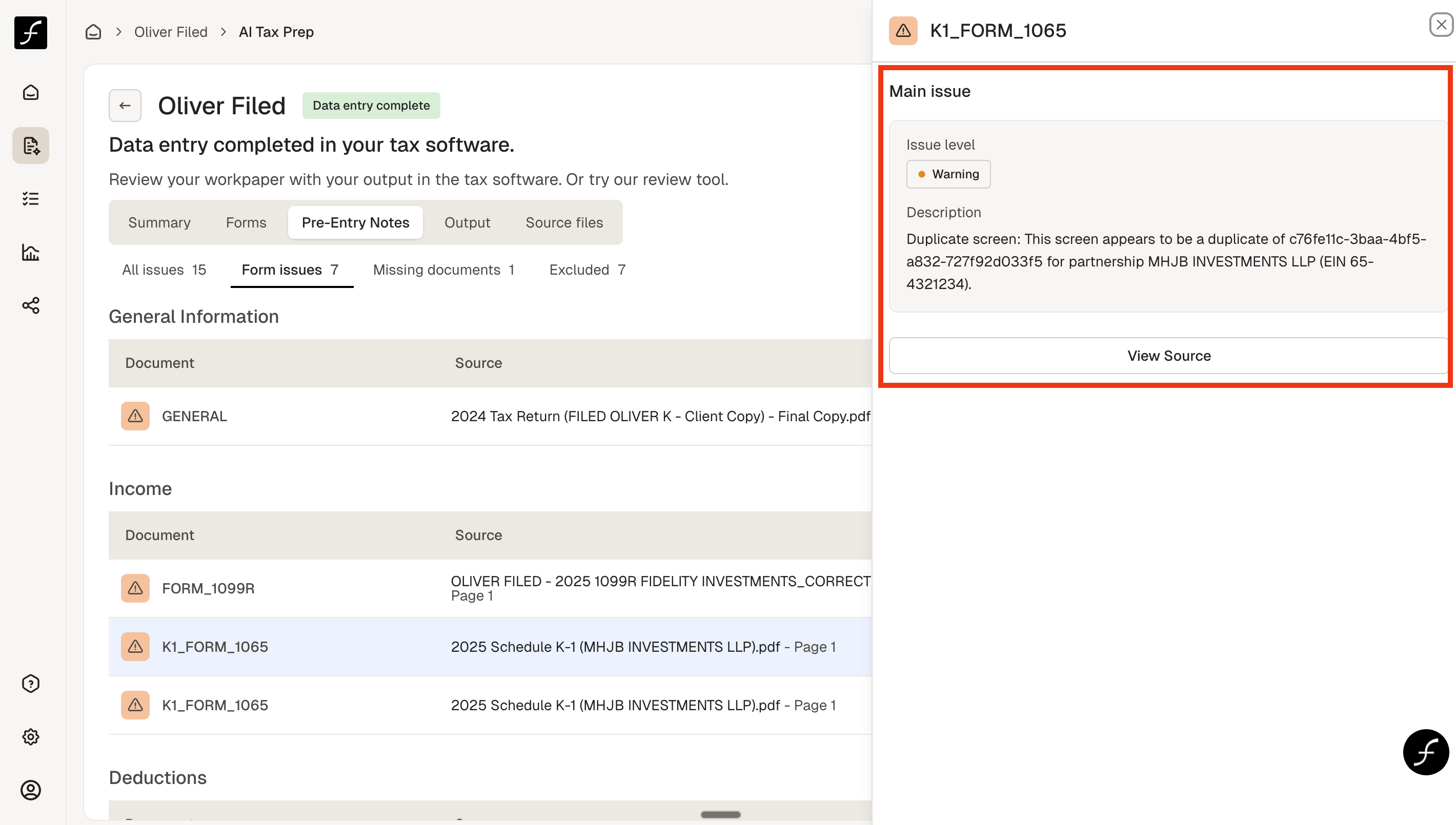
An example of a Warning notification is when our AI picks up on a potential error - something that should be reviewed or verified. In this particular case, our AI picked up a potential duplication for a Partnership K-1. Upon checking, it wasn’t actually a duplication, instead it was a second K-1, so 2 K-1 screens were actually necessary, no changes made.