Pre-Entry Notes Tab Overview
Last updated: February 9, 2026
The Forms tab will show the forms and screens that AI has detected from the uploaded document file.
How to find the Pre-Entry Notes Tab
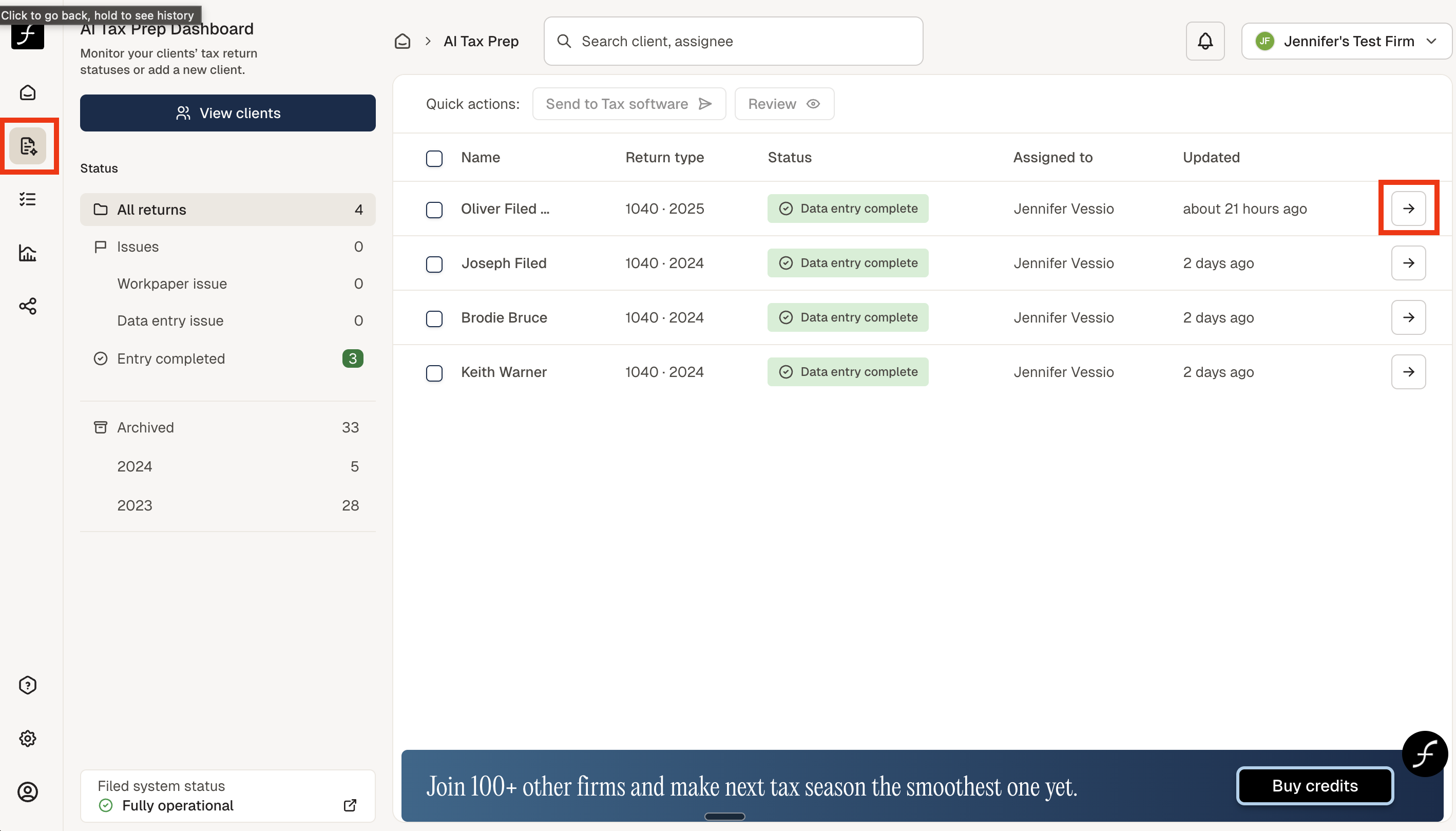
From the home screen, click the AI Tax Prep icon, shown below (to the left). Then select the client by clicking on the arrow (shown on the right) of the client name.
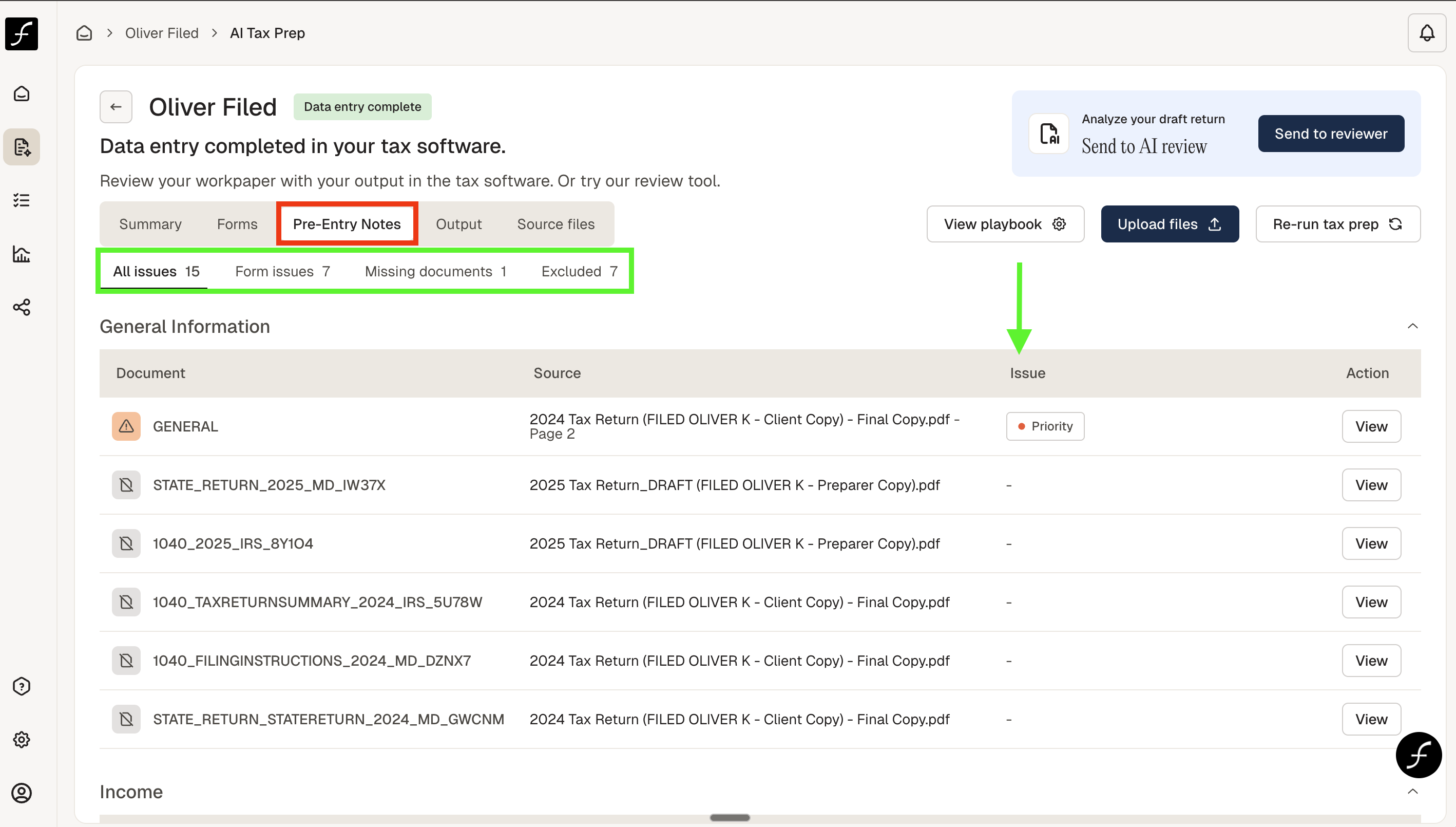
You will arrive at the screen shown below. There are 5 tabs, Pre-Entry Notes is the third one - highlighted in red. The Pre-Entry Notes tab will show you potential issues, missing documents, and excluded documents as determined by Filed’s AI.
All Issues - in green - can be filtered. Click form issues to see only form issues as well as the logic behind the determination of it being an issue. The green arrow shows where you can see issues that have been flagged.
Click Missing documents to view only missing documents as well as the reasoning behind why this document was expected to be uploaded.
Excluded documents will include any documents that our AI determined to be unnecessary to the tax prep process - maybe a duplicate, maybe a document that has a corrected form, like a corrected W2 (the incorrect one would be excluded).