Settings Menu - Overview Workspaces Tab
Last updated: February 1, 2026
The Workspaces page is where you can view and manage the workspace is available to your firm. A workspace represents a specific operational setup within the system.
Some firms will only have one workspace, but multiple workspaces may be used if:
Your firm works with more than one tax software, or
Your firm operates across multiple office locations or teams that require separate configurations.
This resource includes:
How to find the Workspace tab
Workspaces Overview
Creating a New Workspace
How to find the Workspaces tab
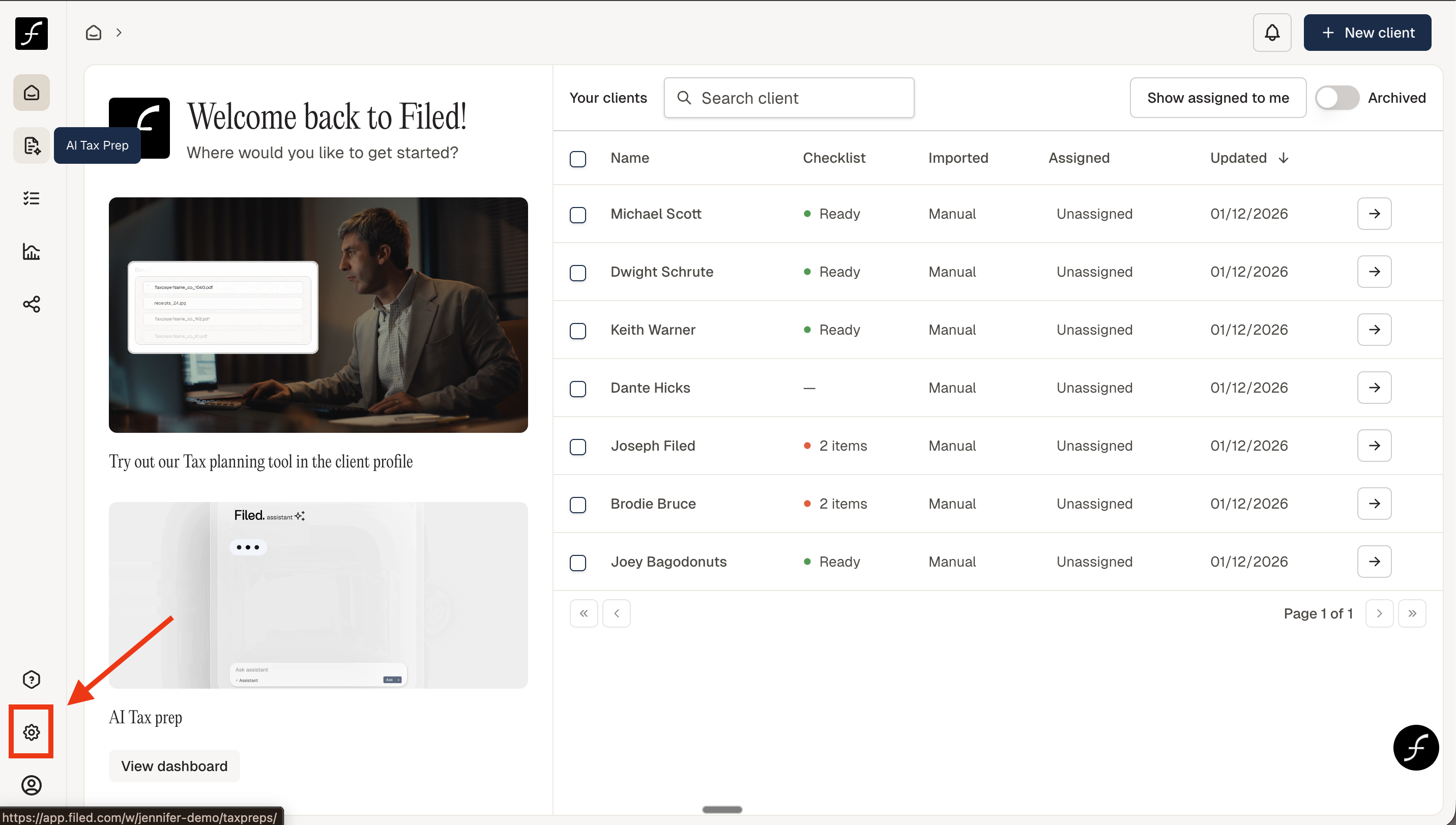
When you log in, you will land on the Home page. From there, navigate to the lower-left corner of the screen and click the Settings icon.
Workspaces Overview
From the Workspaces page, you can see which workspace is currently active, switch between workspaces if needed, and update workspace details such as software credentials. This allows you to keep your firm's set-ups organized and ensures the system is connected to the correct tax software and location at all times.
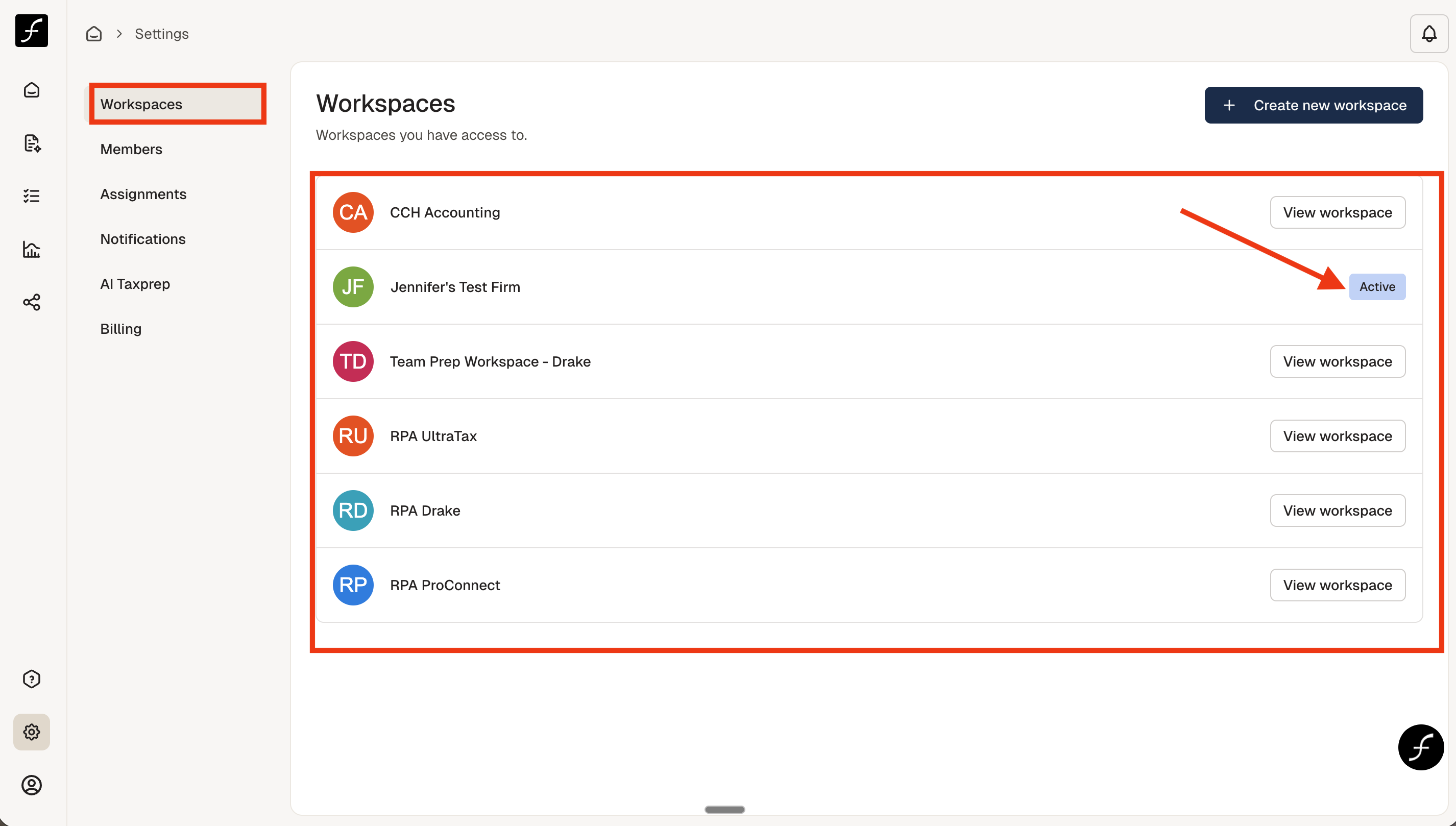
Once you open the Settings page, you will see a list of all available workspaces. You may only see one workspace, which is completely normal.
The workspace you are currently using will be clearly indicated on this page.
Creating a New Workspace
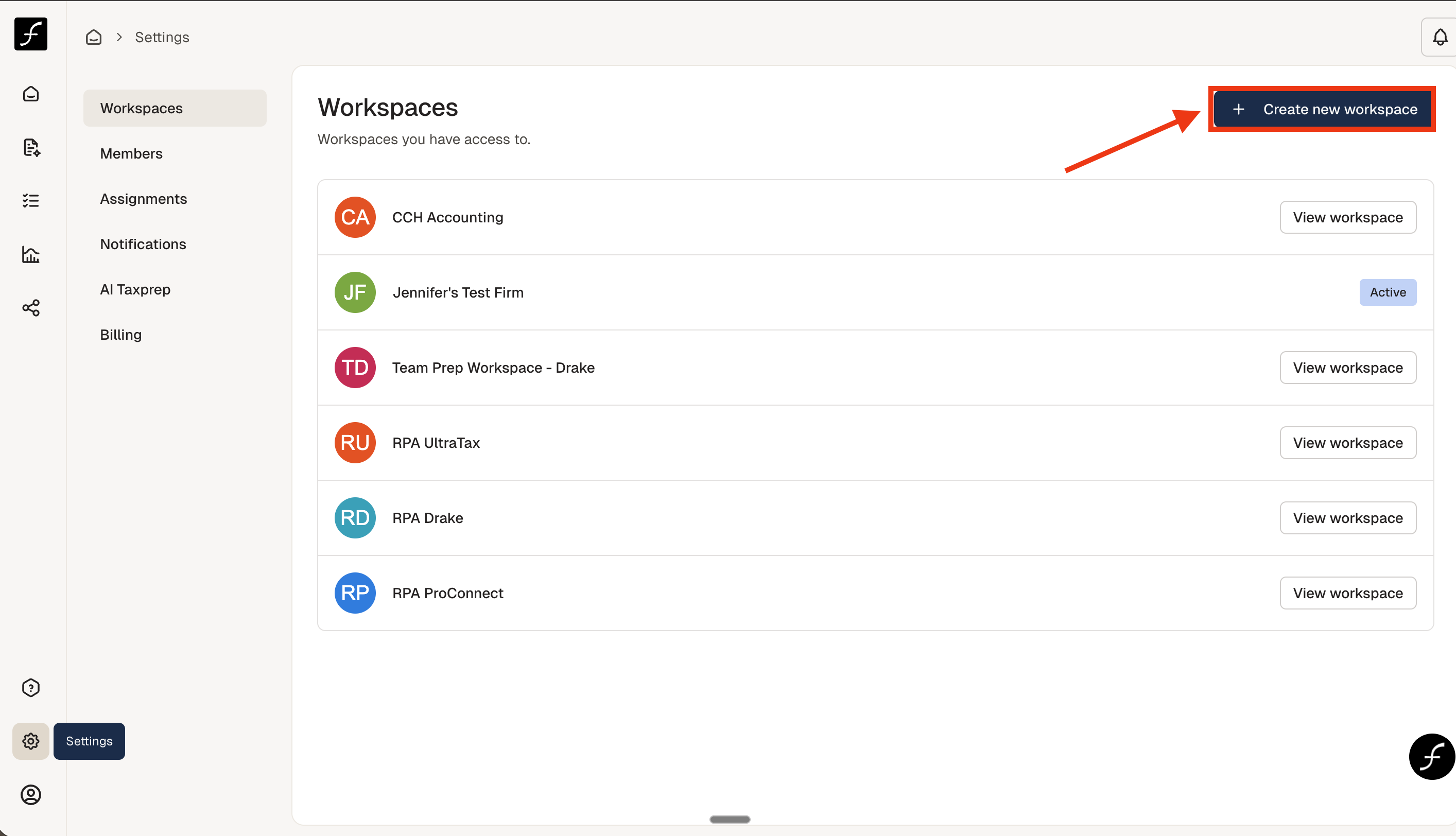
In your Settings, go to your Workspaces tab.
Click the Create new workspace button at the top of the page.
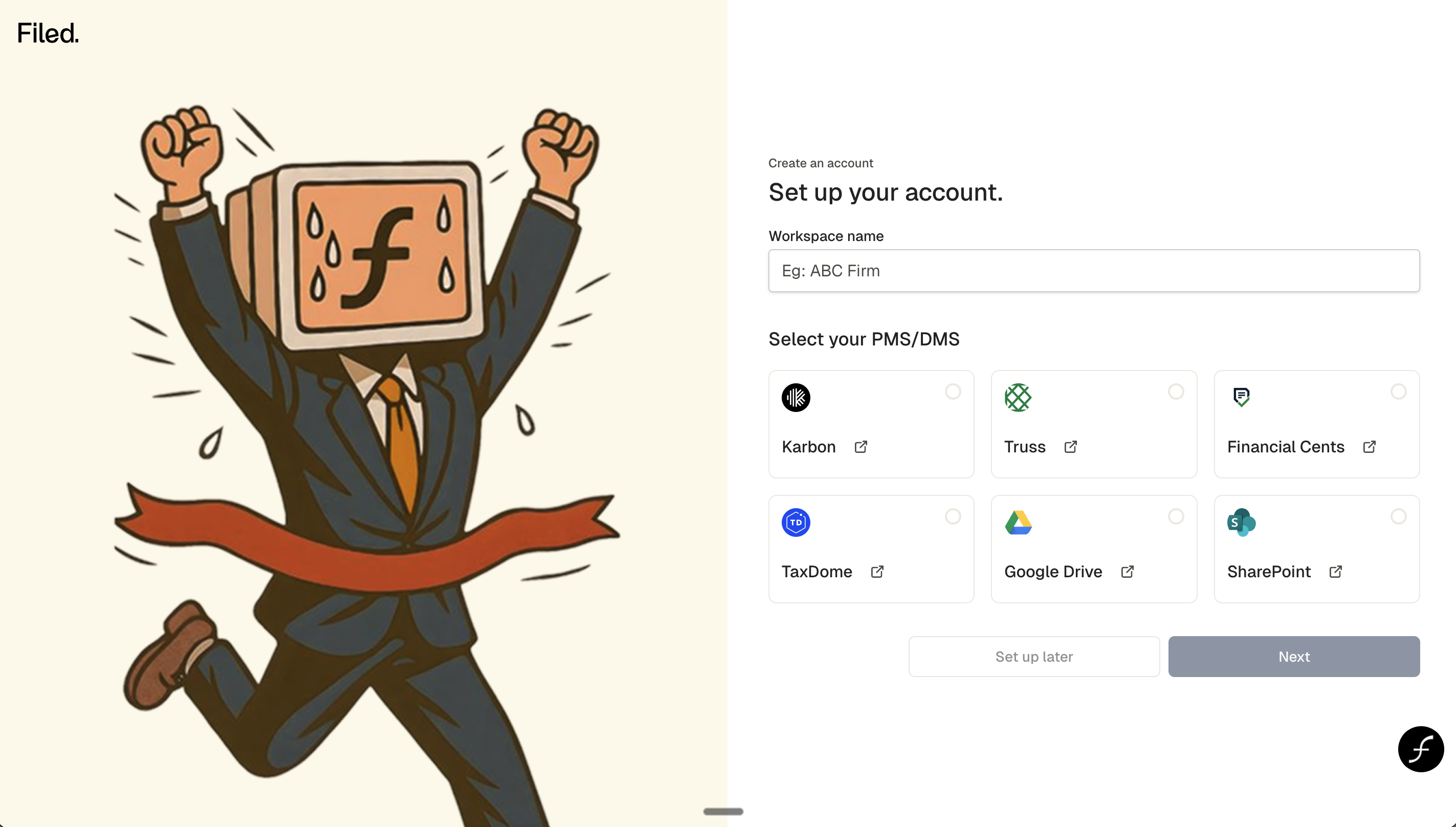
Follow the instructions for creating a new workspace with name, tax software, PMS/DMS. You can also choose to set this up later (integrations).
Your new workspace can be selected at any time.