Review Functions in Binder - Flag
Last updated: March 9, 2026
In Binder there are several review tools - this article will talk about how to flag a document. How to add, leave a note, and save.
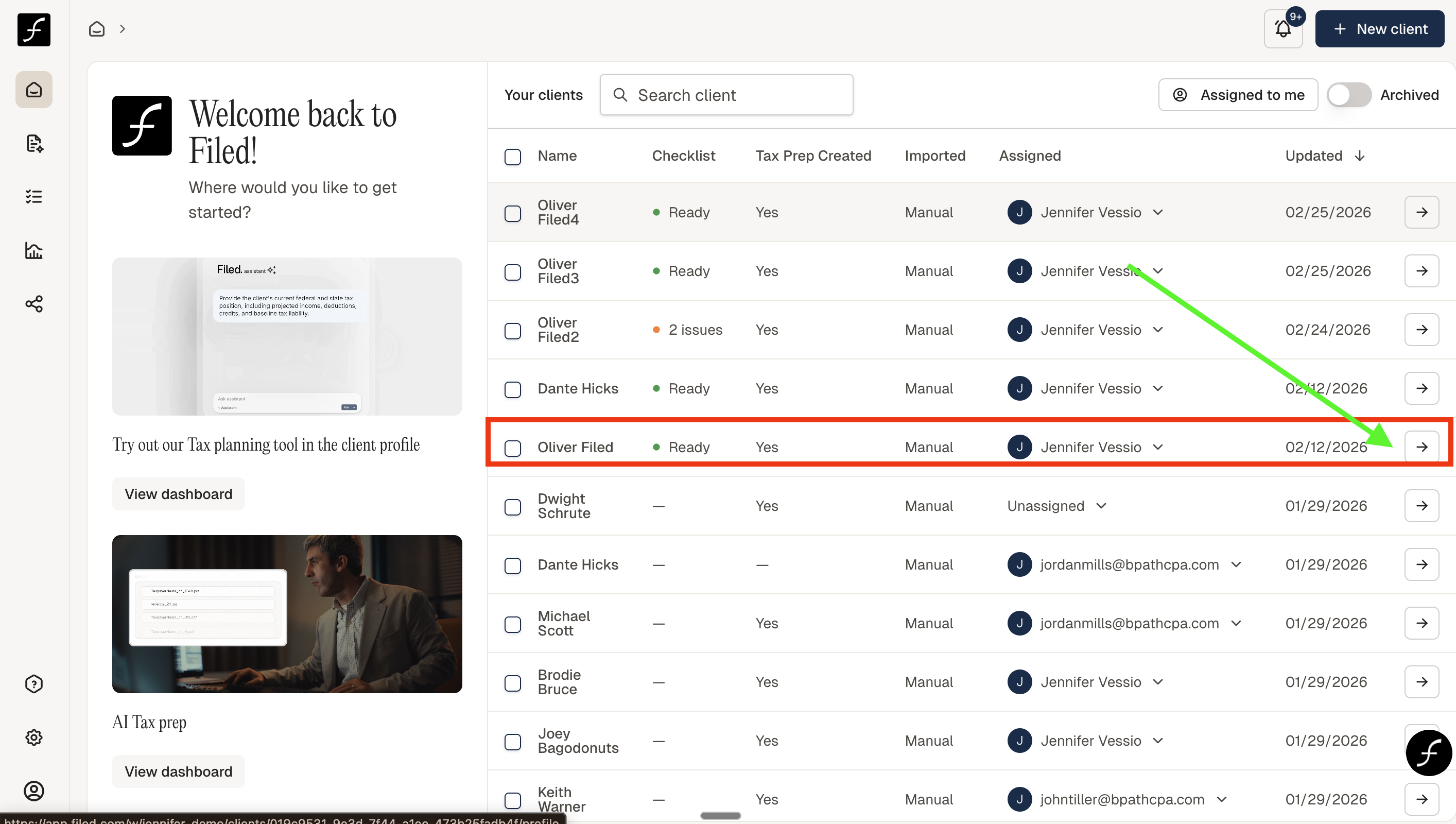
To find the Binder from the home screen, simply click on the arrow to the right of the client that you would like to open.
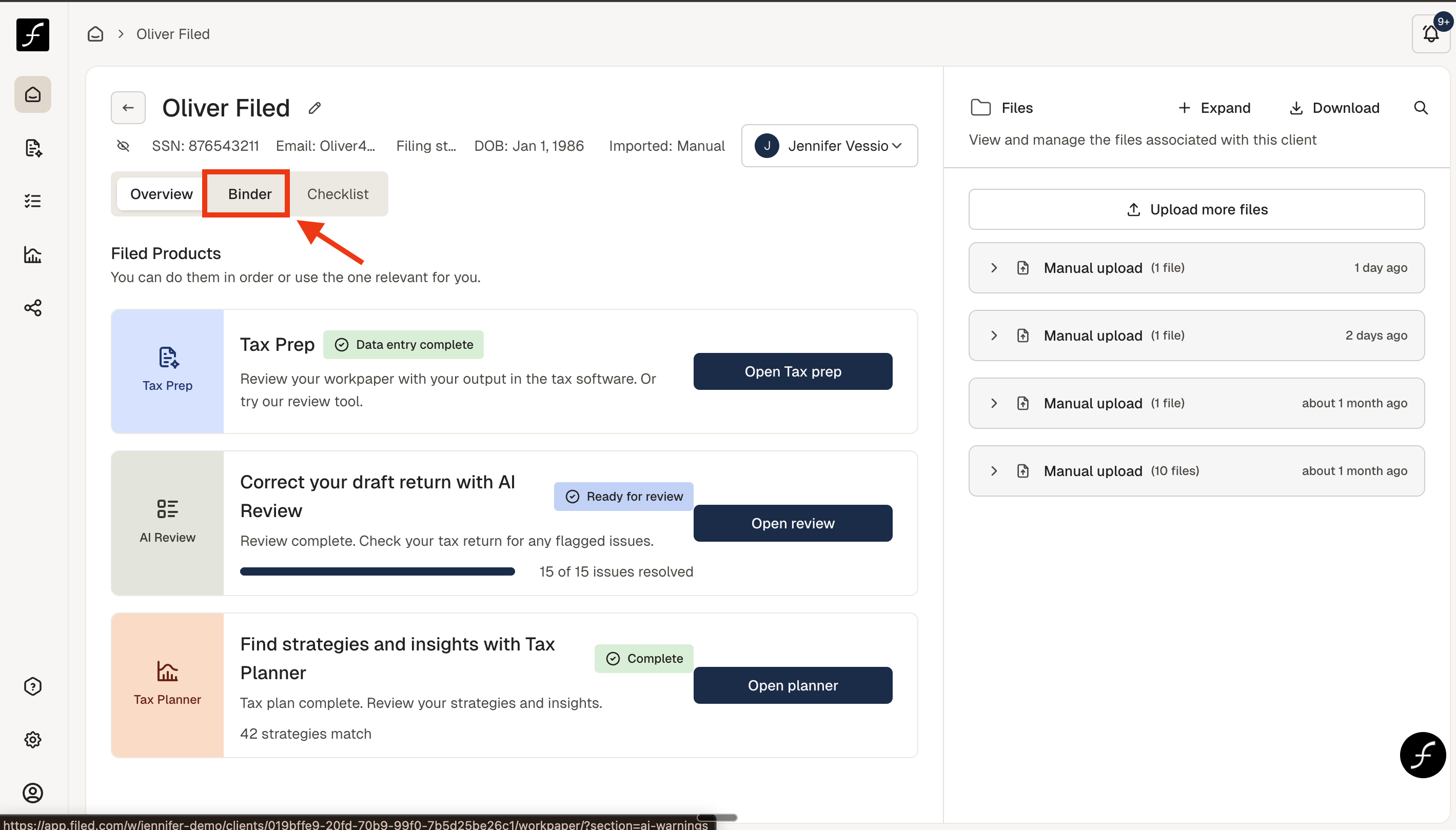
This brings you the home screen of the client. Click Binder as shown in the screenshot below to access the Binder and review tools.
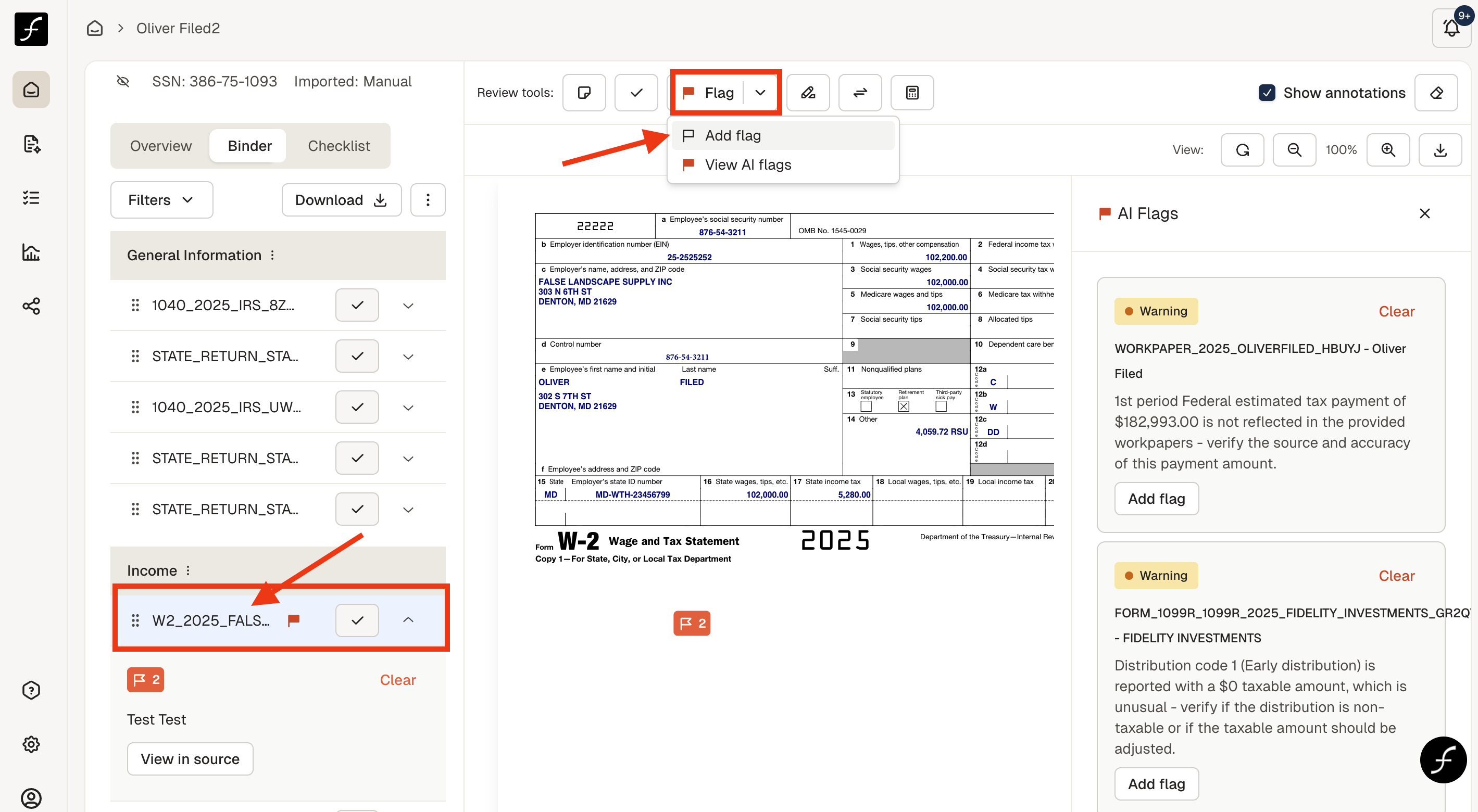
Upon opening the Binder, select the form that you would like to review and click it to open. You will see the review tools above the source document. The flag is the third icon as shown below. To add a flag to a source document you can click the Flag icon.
Then click on the source document where you want to leave a note about the flag. Type your note and click Save. To view the note in the flag, simply hover over the flag on the sourc document.
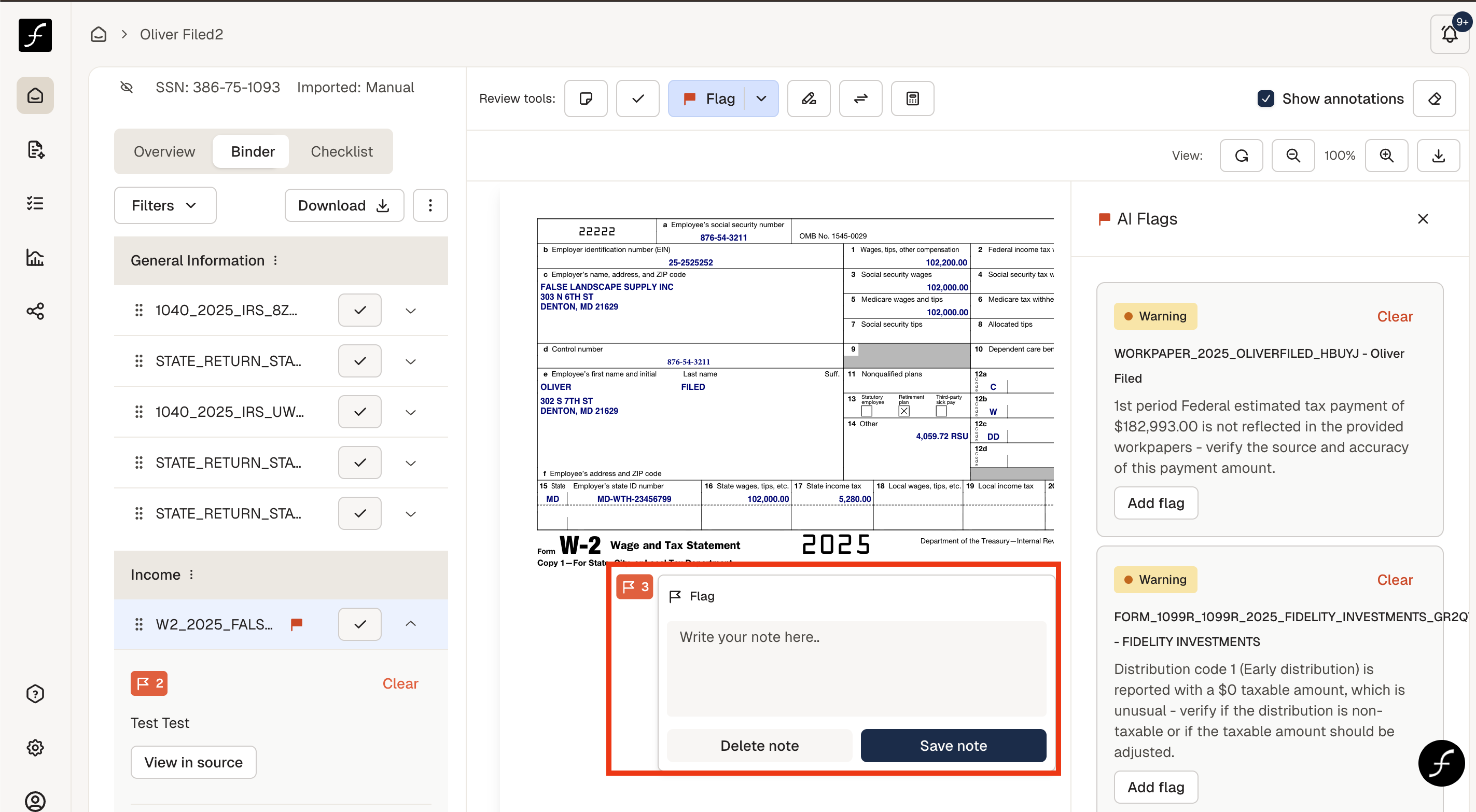
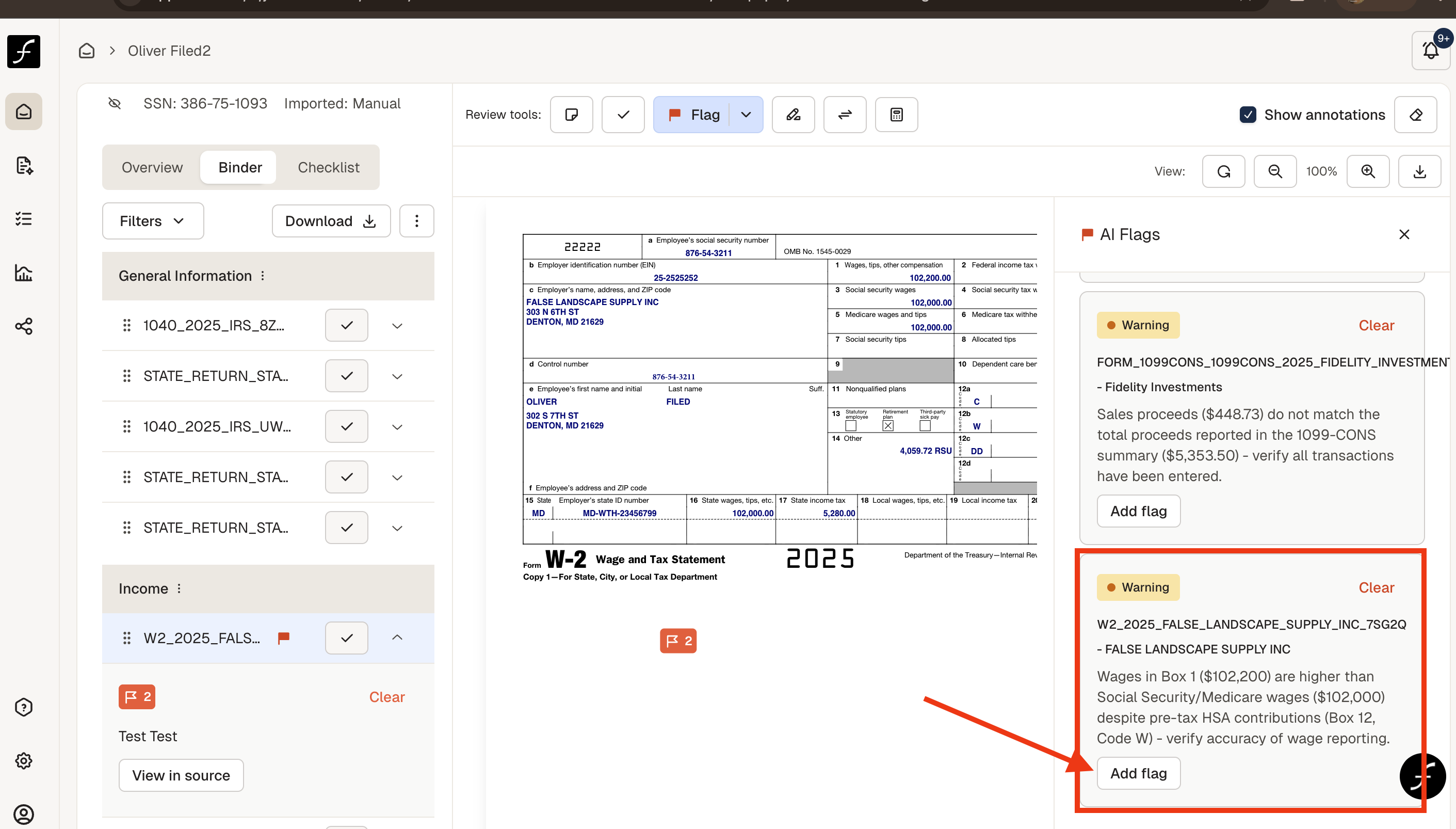
Alternatively, you can add a flag that comes from Filed AI - to the right there are the warnings and priority notifications - simply open the document in question and click Add Flag.