Filed Feedback Program
Last updated: March 6, 2026
Thank you for continuing to work with Filed during tax season.
As part of our commitment to improving quickly and transparently, we are continuing to actively enhance accuracy and workflows throughout the season.
To support these improvements, we are introducing a simple feedback process that allows your team to report issues directly to Filed.
This guide explains how to participate.
How the Feedback Program Works
When you submit feedback through Filed:
Your issue is automatically routed to the Filed tax engineering team.
Specialists review the return behavior and expected outcome.
Engineering evaluates and implements improvements when applicable.
Fixes improve future returns automatically.
You do not need to determine who to contact or where to send the issue.
When to Submit Feedback
Please submit feedback whenever you notice:
A form or box populated incorrectly
Missing data that should have flowed through
Incorrect calculations or treatment
Unexpected AI behavior
Situations where manual correction was required
If you needed to adjust something manually, we want to know about it.
How to Submit Feedback
Step 1: Open Filed Workspace
Log into your Filed workspace.
Navigate to the Filed Feedback Program form through the chat widget in the bottom right corner.
Step 2: Complete the Required Fields
Provide as much detail as possible when completing the form.
⚠ Screenshots are required for all feedback submissions.
The form will ask you to confirm that screenshots have been attached before submitting.
Step 3: Attach Screenshots (Required)
Screenshots must be uploaded directly to the ticket after submitting the form.
Upload screenshots by:
Clicking the attachment icon when adding description
Your submission is considered complete once screenshots are attached and you click submit at the bottom of the form,
Please include screenshots that clearly show:
The incorrect or missing entry
The affected form or box
The expected result when possible
Multiple screenshots should be added if needed.
Examples
Video Walkthrough
Feedback Example
Client / Return: John Smith
Tax Software: ProConnect Form + Box: W-2
Description:
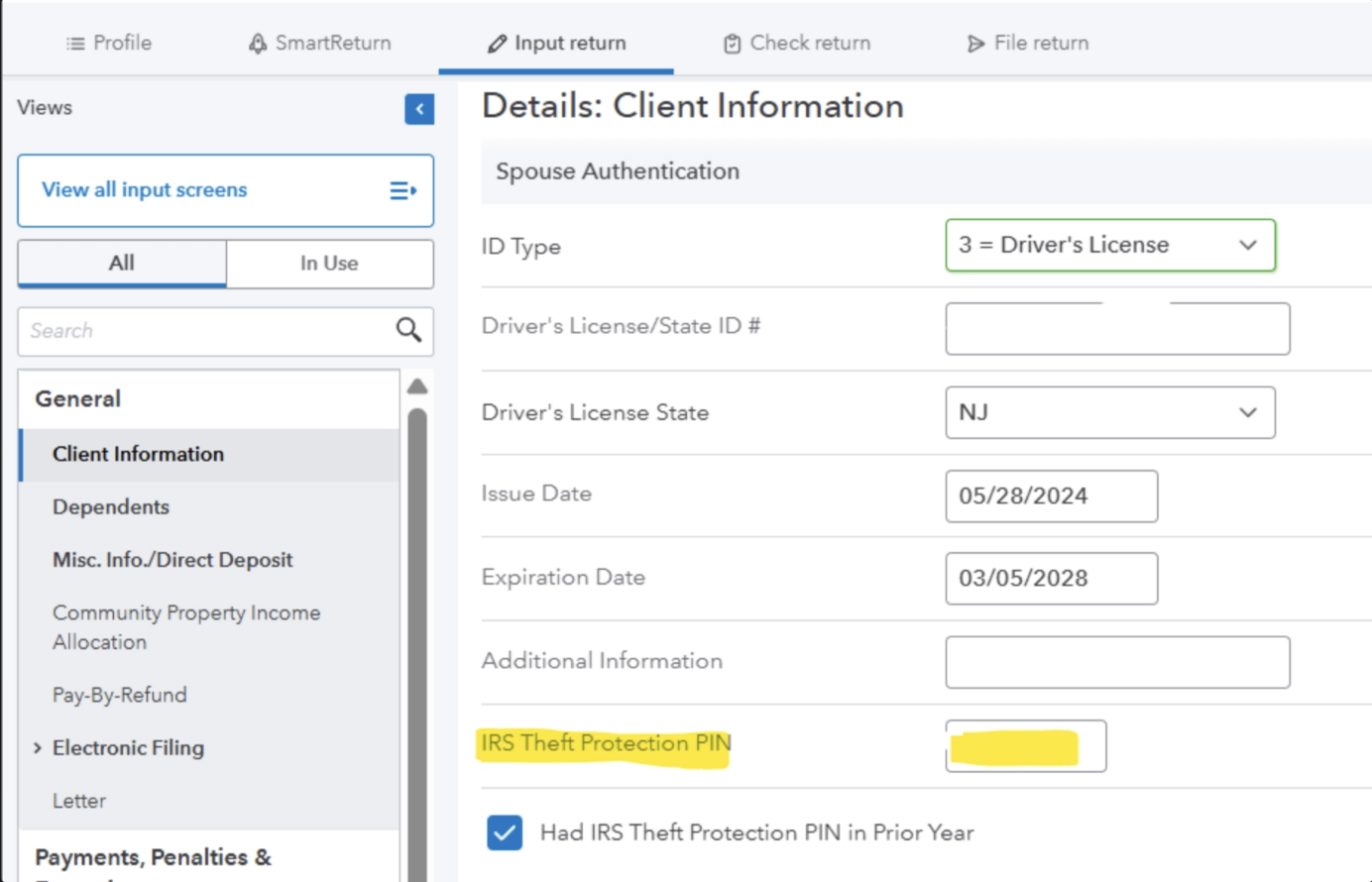
Incorrectly entered IRS Identity Protection PIN in the Additional Information section
Capital Inc. W-2
Incorrectly sourced income to resident state of NJ instead of NY
Did not enter state wages or withholdings for NJ or NY
ABC W-2
Incorrectly sourced NJ income to NY
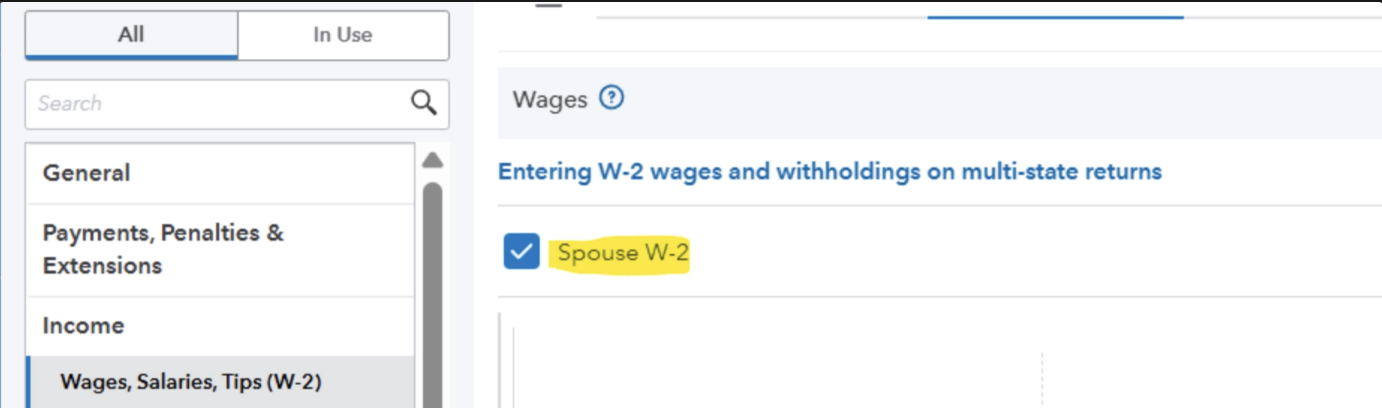
Did not mark as spouse W-2. This checkbox is important for FICA and Additional Medicare Tax calculations in PTO
Expected Behavior:
The IRS Identity Protection PIN should be correctly entered in the Additional Information section.
W-2 income and withholding amounts should be sourced to the correct states based on each form, with NJ and NY state wages and withholdings properly populated.
The ABC W-2 should be marked as a spouse W-2 so that FICA and Additional Medicare Tax calculations are performed correctly in PTO.
What Happens After You Send Feedback
Once received, Filed will:
Identify whether the behavior relates to automation navigation, mapping, or logic
Implement improvements or fixes
Track recurring issues across firms
Communicate major improvements as they are released
Our Goal
This program allows us to improve Filed quickly using real-world returns while minimizing disruption to your workflow.
Your feedback directly helps improve accuracy for your firm and for all Filed customers.
We appreciate your partnership and transparency as we continue improving together.