Settings: Assigning all new clients to a single teammate
Last updated: February 23, 2026
The Assignments page allows you to control how newly imported clients and tax returns are assigned within your firm. This feature helps streamline workflows by ensuring that each import is automatically routed to the appropriate team member, reducing manual reassignment and keeping work organized from the start.
By default, all new clients are assigned in Filed based on who imported the documents but with this setting, you can designate a single team member to be assigned to all new clients.
How to find the Assignments page
Settings Menu
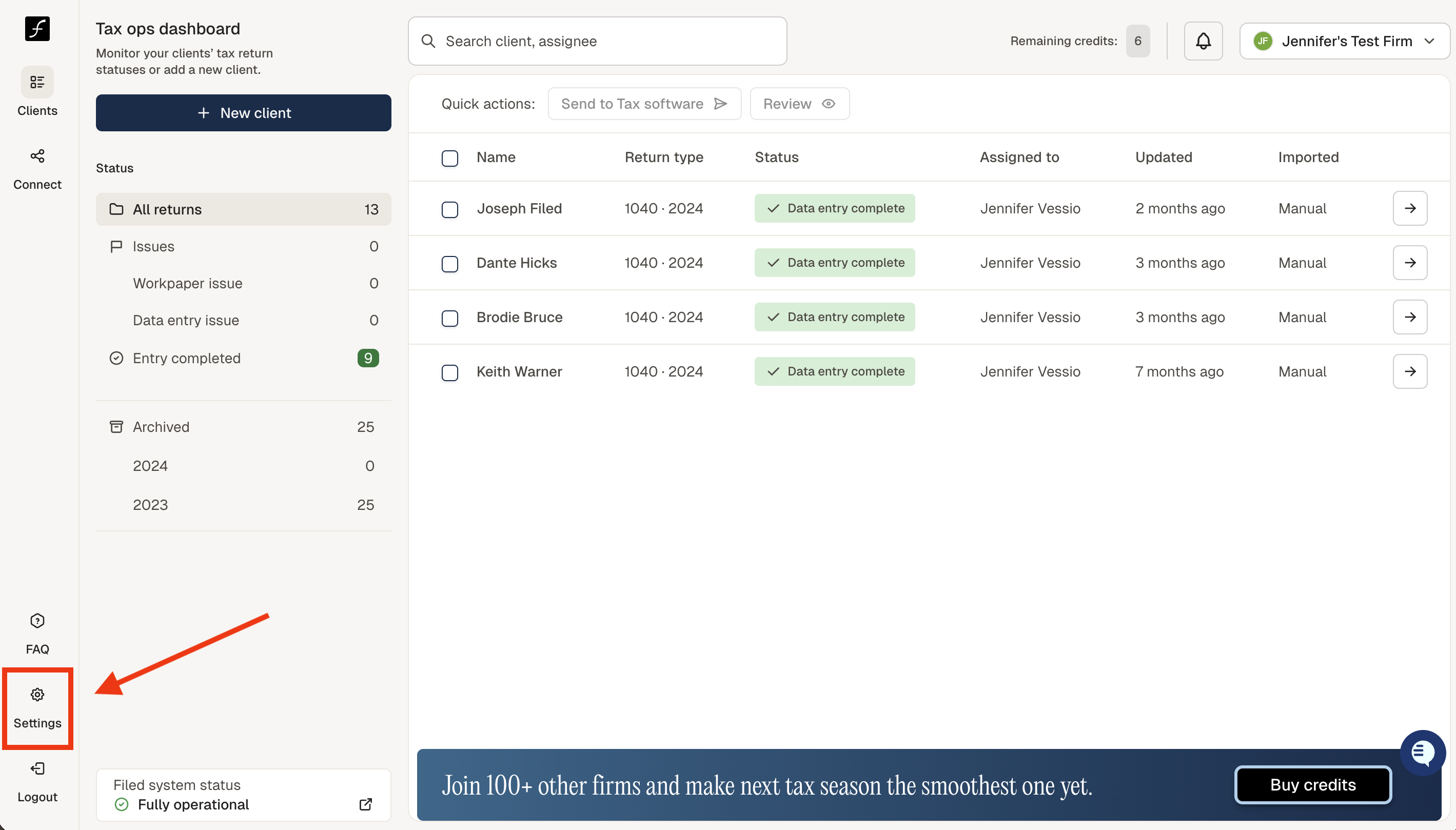
When you log in, you will land on the Tax Ops page. From there, navigate to the lower-left corner of the screen and click the Settings icon.
How to Manage Assignments
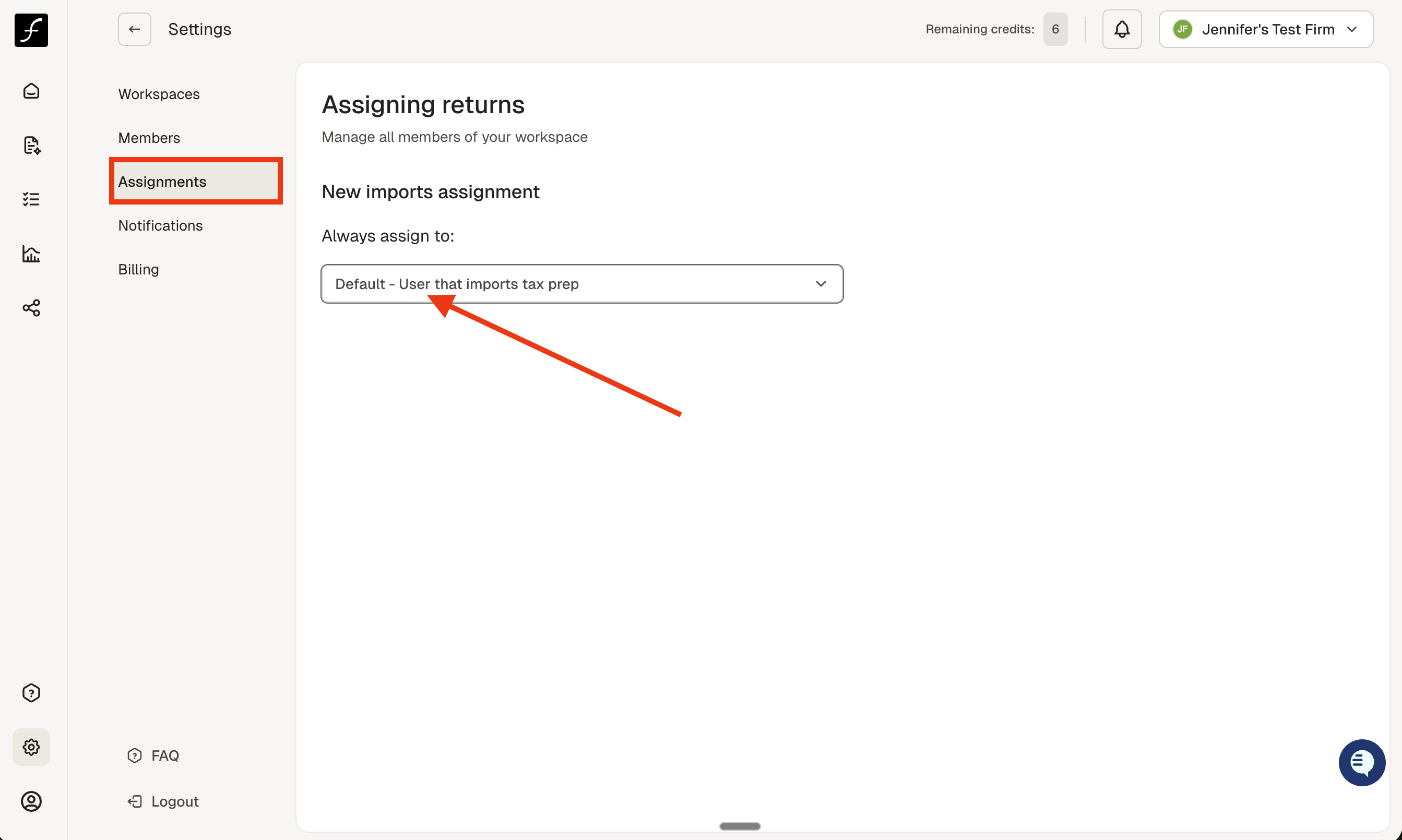
Once you open the Settings page, you will see a list of all available workspaces. Select the workspace you would like to manage (typically you will only have one), then click Assignments
By default, and recommended, returns are automatically assigned to the team member who imports the documents. This ensures immediate ownership and accountability but this setting can be changed here.
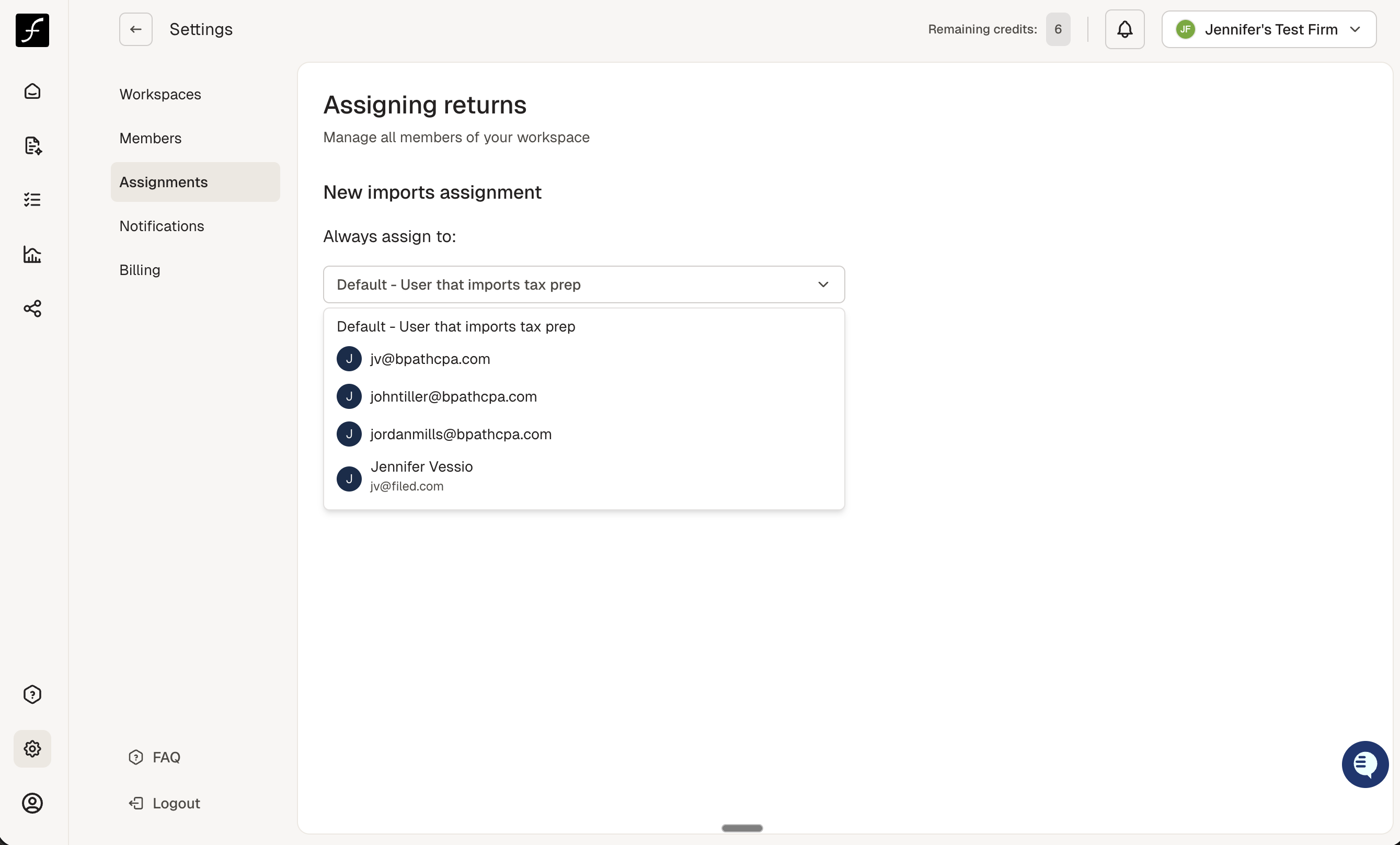
If your firm prefers a centralized intake process, you can use the dropdown menu to select a single team member who will receive all imported clients and tax returns.
Your selection will be applied automatically and can be updated at any time.
How do I reassign my clients to my team?
For bulk assigning function, follow this guide.
For reassigning a previously assigned return, follow this guide.