Settings: AI TaxPrep
Last updated: February 23, 2026
Purpose of the AI Tax Prep page
The AI TaxPrep page exists to allow you to set a firm specific rule that allows or disallows returns to be automatically run and sent to your tax software without manual effort after the import of source docs. On this page you can also add custom rules that allow for specific exceptions to the enablement of automatic sending. You will be able to create rules that the client file must meet before it’s automatically sent to prep. These rules are created and managed by you for a personalized experience.
How to find the AI Tax Prep page:
Settings Menu
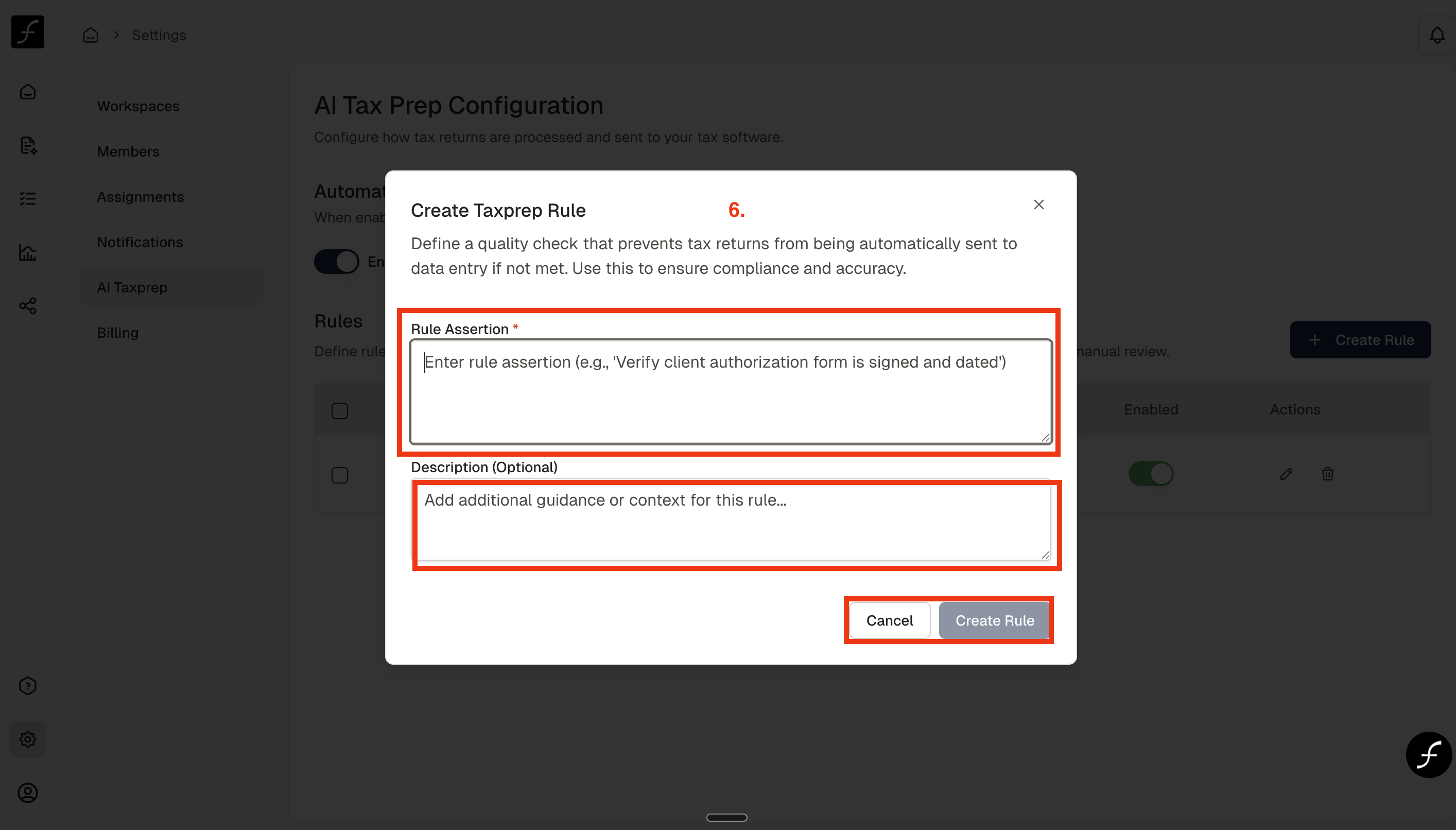
When you log in, you will land on the Home page. From there, navigate to the lower-left corner of the screen and click the Settings icon.
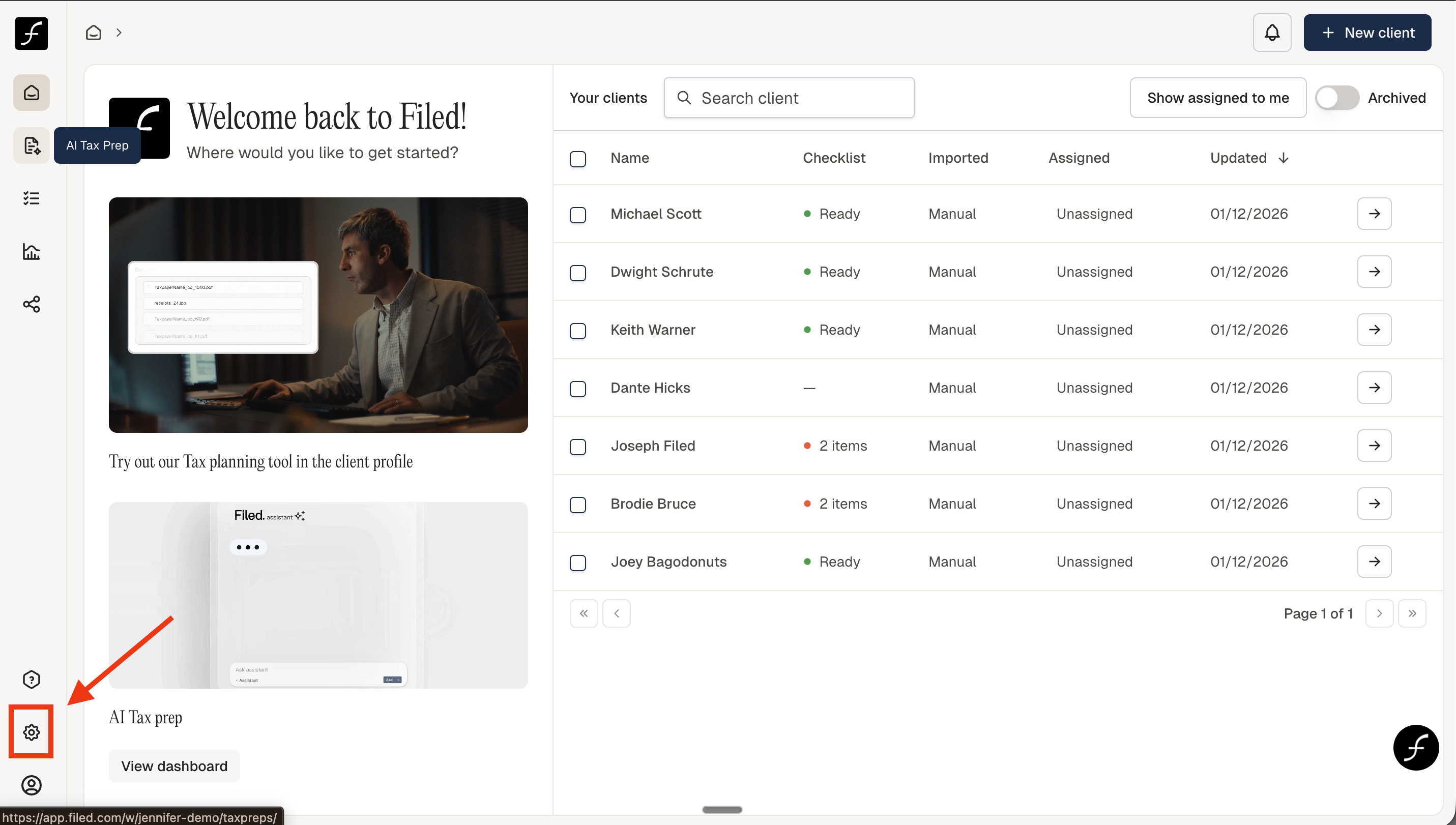
Clicking the Settings icon will bring you to the Workspaces page where you can find the list of available screens - choose AI Taxprep as shown below
How to Manage AI Tax Prep Configurations
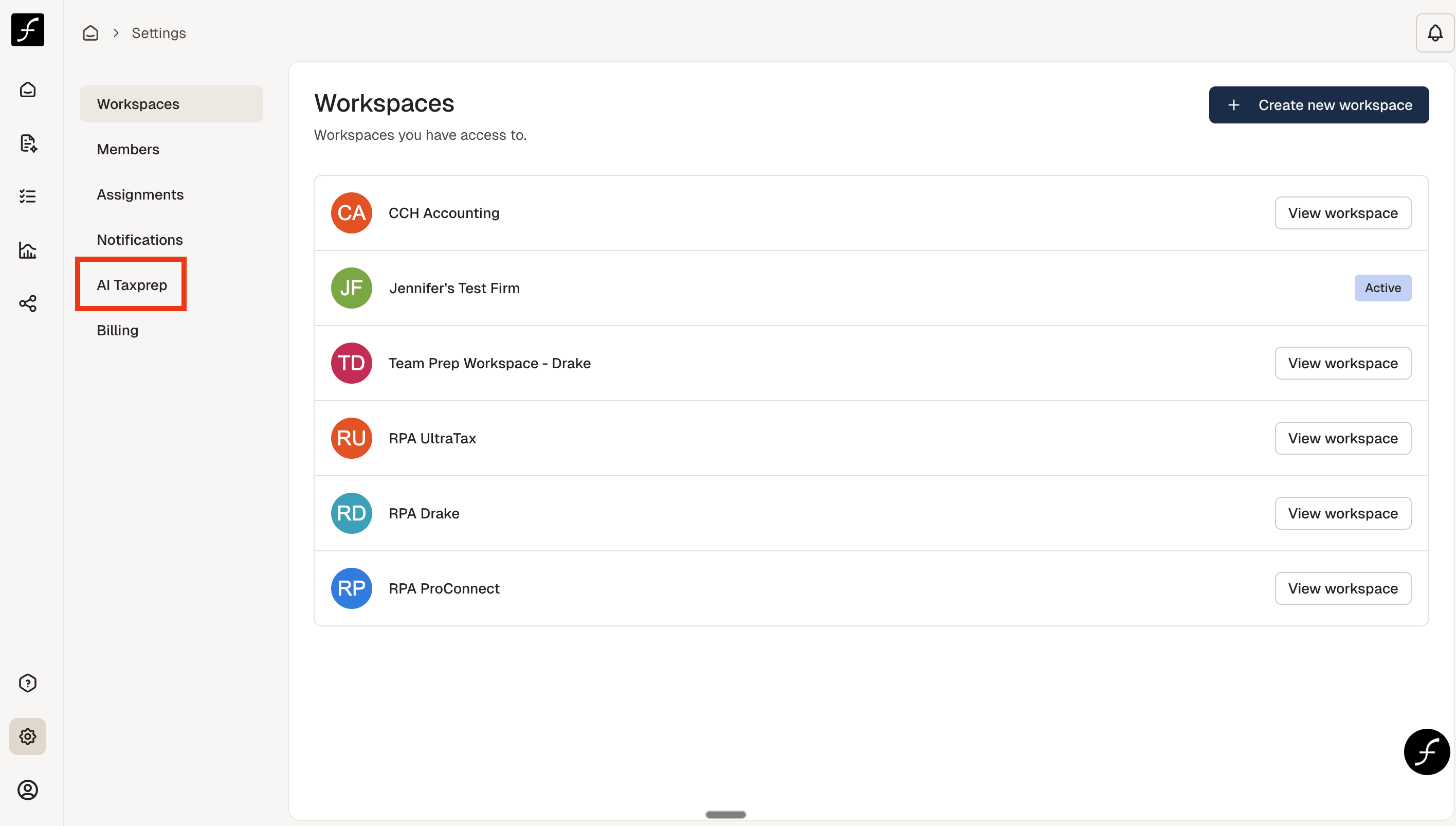
Once you have opened the AI Taxprep screen you will see the view below. There is a toggle switch to enable automatic sending.
"Automatic sending" enabled means that once you import client source documents, the return will automatically run in Filed and send the completed draft return to your tax software, if you have a tax software integrated with Filed.
1. The rules that have been created can be seen below under Assertion
2. To see if you have enabled a specific rule, check the Enabled column
3. If you would like to edit or delete a rule, to the right of the Enable toggle, you will find an Edit and Delete icon
4. Finally, to create a new rule, click the + Create Rule button 5.
Creating other taxprep rules
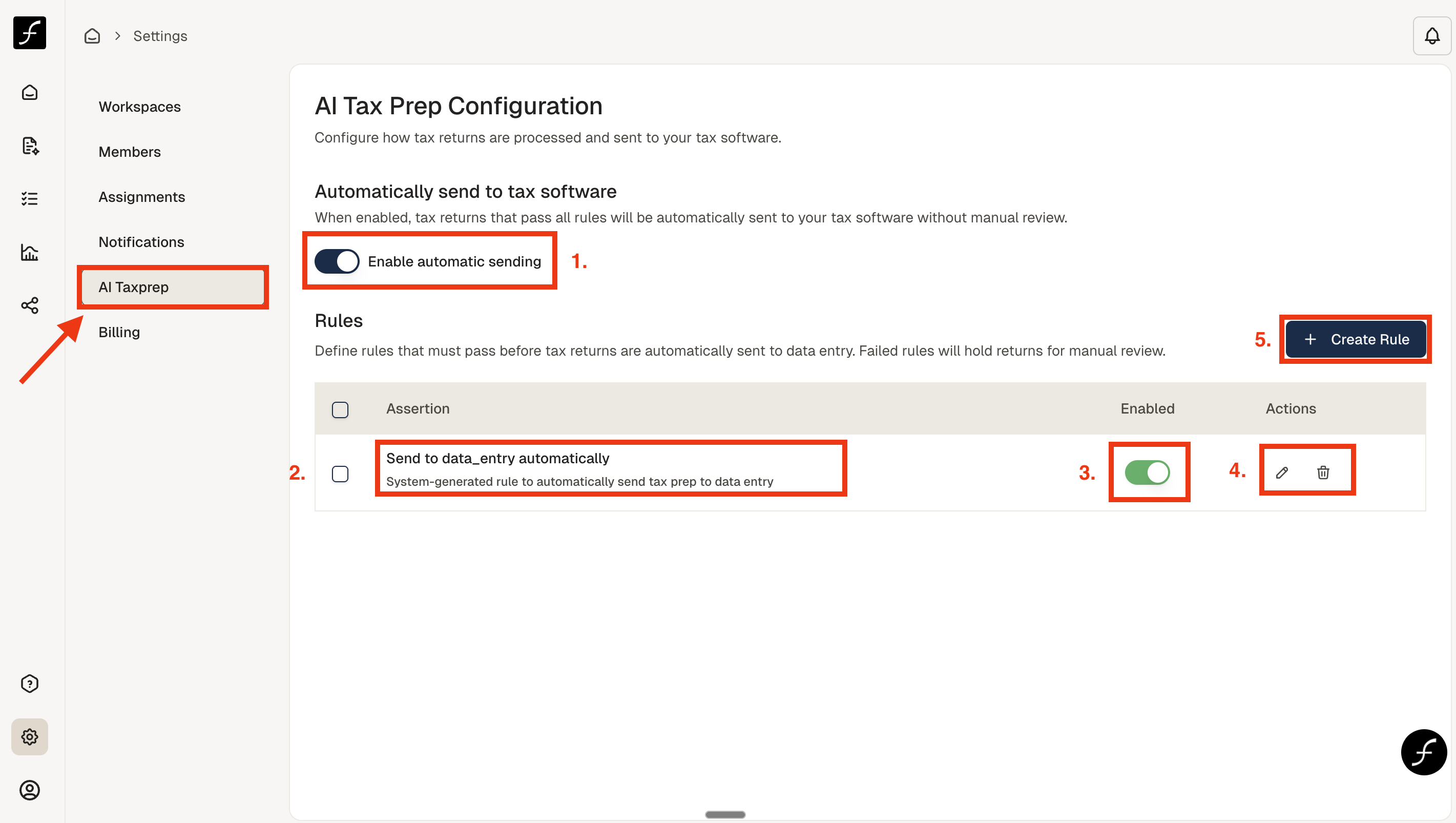
If you click the + Create Rule button, you can create a specific rule that would impact an automatic send to your tax software. Define your rule in the Rule Assertion box. This can help ensure that returns that don't meet a set of standards you define will be stopped from being sent to your tax software, even if you have the automatic send rule enabled.
There is an optional description box where you can describe the purpose, reason, or function of this rule. Click Create Rule to confirm the rule, or Cancel to discard the rule.