Adding your team to your Filed workspace
Last updated: February 1, 2026
This guide walks you through how to add your team to Filed so everyone can get access to your workspace.
This resource includes:
How to find the Members tab
How to add a new member
Getting your teammates logged for first time
How to find the Members tab
The Members page is where you manage the people who have access to your account. From this screen, you can add team members and manage their permissions.
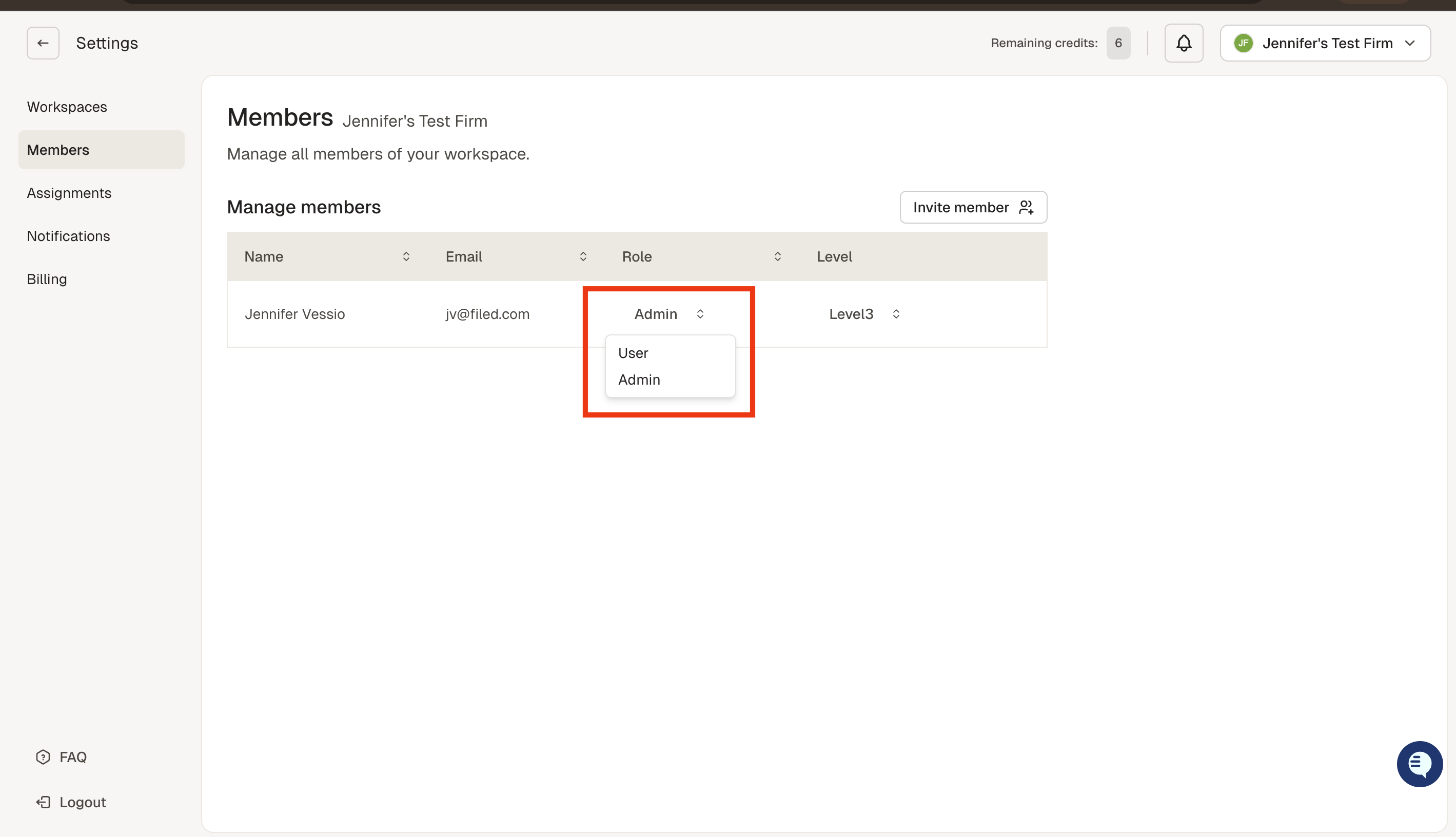
Each member can be assigned a role—either Admin or User.
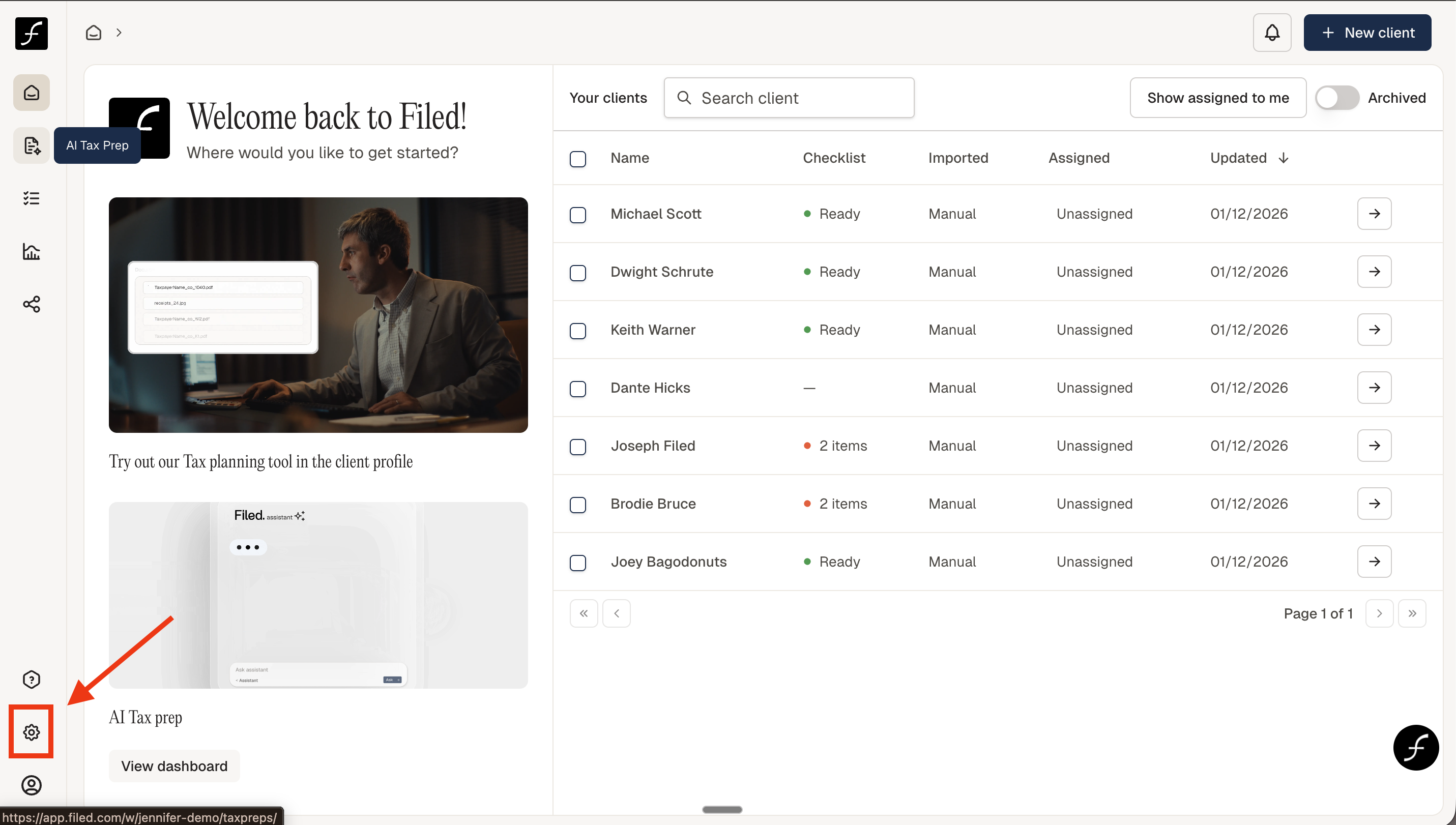
When you log in, you will land on the Home page. From there, navigate to the lower-left corner of the screen and click the Settings icon.
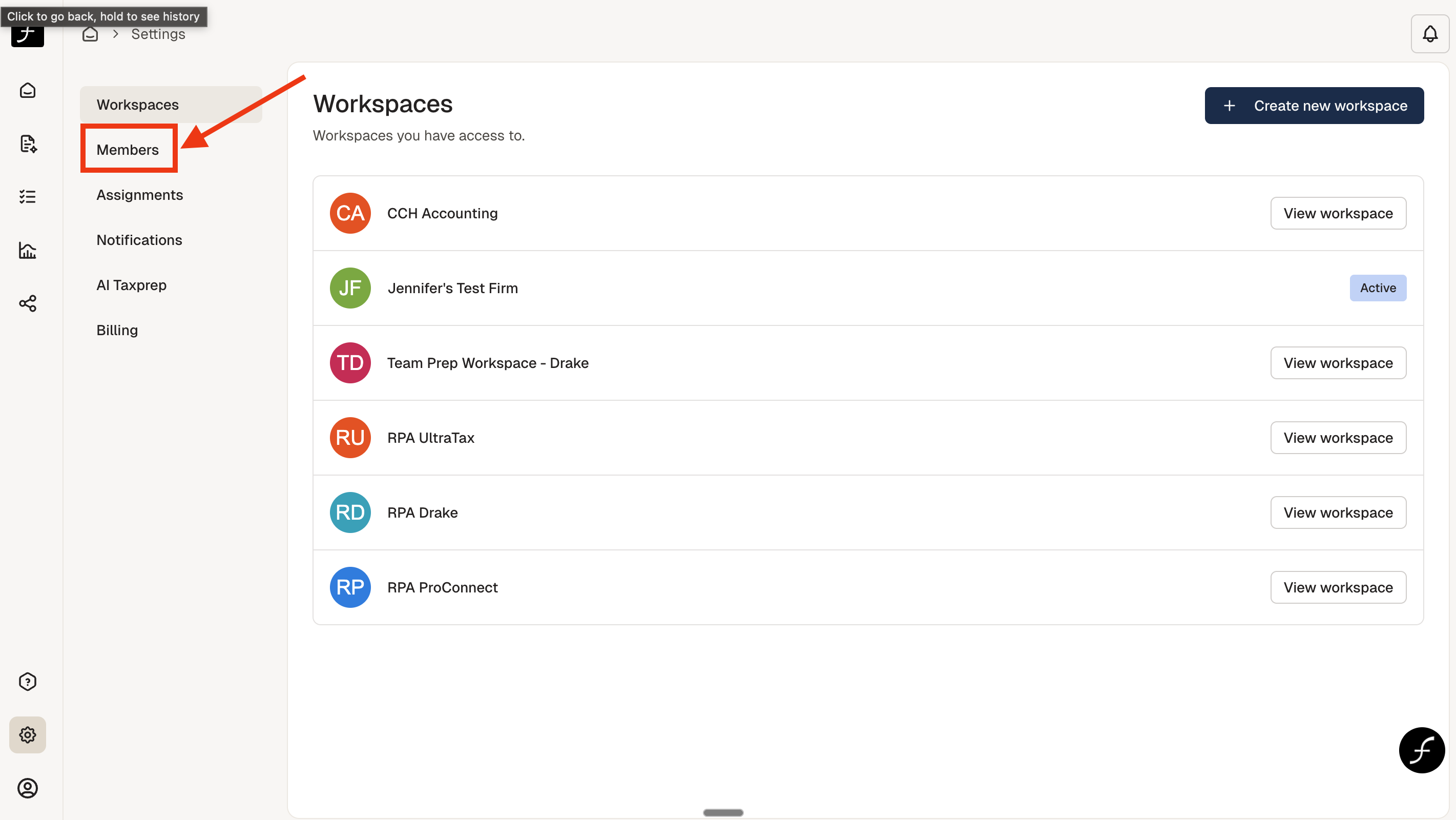
Once you open the Settings page, select Members to view and manage your team.
How to add a new member to your firm
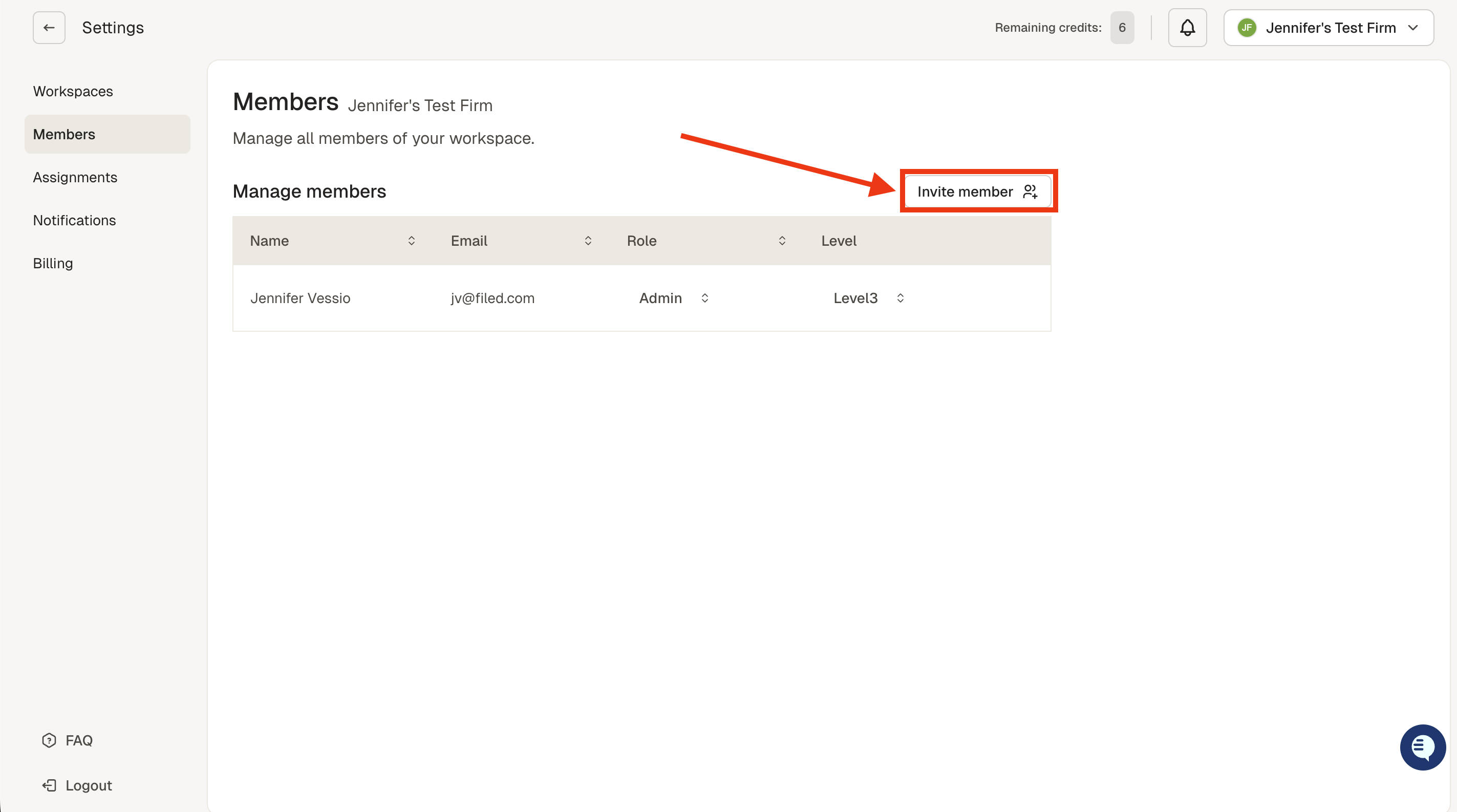
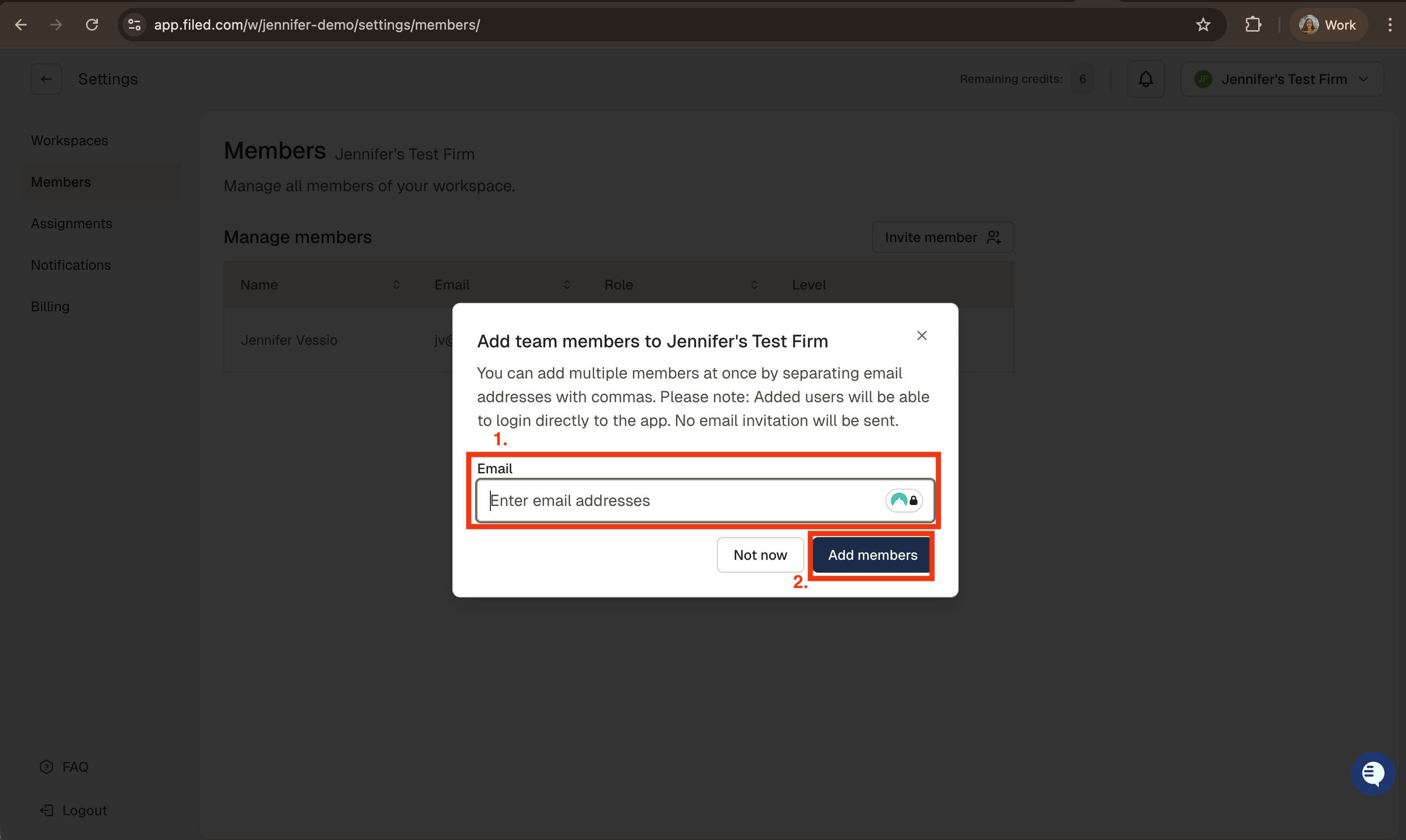
Click Invite Member. Enter the email address or addresses of the people you would like to invite, then click Add Members.
Each member must be assigned both a role and a permission level
Admin
Can add users and update roles (Admin/User)
Use Filed products to prep, review and advise
User
Use Filed products to prep, review and advise
Permission Levels - These features will be fully functional over the next few weeks, we expect them to be live by lat February.
Getting your teammates logged for first time
Your teammates can log in http://app.filed.com/ immediately after creating your teammate accounts. Filed will verify their login with 2FA.
Note: Your team will not receive an email invite from Filed.